Honeywell Thermostat Not Working? Fix Heating & Cooling Issues
If your Honeywell thermostat is not working, the issue is usually caused by incorrect settings, wiring problems, or system configuration. In many cases, the thermostat is working, but it is not set up correctly for your HVAC system. This guide explains the most common causes and shows how to fix heating, cooling, and ISU-related problems step by step
| Most Honeywell thermostat issues are caused by incorrect ISU settings, wiring problems, or system configuration. If your thermostat turns on but does not heat or cool, the system type or installer setup is usually incorrect. |
Why Your Honeywell Thermostat Is Probably Not Broken
That reaction is understandable. But Honeywell thermostats are built to pause, wait, and follow instructions. Those behaviors are features, not faults.
Your Honeywell manual describes what each behavior means and when to expect it. Models like the T6 Pro, the T5, and the RTH9585WF all include a troubleshooting section that lists common symptoms alongside their explanations. That section exists precisely for moments like this. Before assuming the thermostat is broken, it is worth opening the manual first.
What the Manual Tells You to Check First
Honeywell Home manuals typically begin their troubleshooting section with the most common causes. Low battery is listed first on nearly every model. A dim or blank screen almost always points to power, not hardware failure.
After power, the manual points to mode settings. If the thermostat is set to the wrong mode for the season, no amount of temperature adjusting will produce heat or cooling. Resideo documentation for models like the RTH9585WF and T6 Pro both walk through mode verification as a first-line check. The manual is the roadmap. It tells you exactly where to look and in what order.
Key Things to Check Before Calling a Technician
Many Honeywell issues look serious, but they are often normal behavior. Start with the checks below before you assume a failure. These checks match what Honeywell Home and Resideo manuals explain. They also help you avoid random setting changes that create new problems.
- Confirm the mode matches your goal. Use Heating mode for heat and Cooling mode for AC.
- Look for Schedule Hold or Temporary Hold. A hold can override your changes.
- Wait out any compressor delay. Many systems pause to protect the compressor.
- Check the fan setting. “On” can run the fan even when heating or cooling stops.
- Check power. Replace batteries if your model uses them, and check the breaker.
- Confirm your system type. Heat pump and furnace settings differ in many manuals.
- Use a manual reset only if your manual recommends it for your model.
Common Reasons Honeywell Thermostats Stop Responding
When a Honeywell thermostat stops responding, the cause is rarely a broken part. It is usually one of four things: the wrong mode, an active schedule to hold, a built-in system delay, or a power issue. Your manual addresses every one of these directly.
Each cause looks similar to the outside. The display seems normal. Nothing happens when you adjust the temperature. The difference becomes clear once you know what to check.
Incorrect Thermostat Mode
Your Honeywell thermostat has a mode setting that controls what the system will do. The main options are heating mode, cooling mode, auto mode, and off. Selecting the wrong one is the single most common reason a thermostat appears to stop working.
In cooling mode, the system will only run on the air conditioner. It will not activate a furnace no matter what temperature you set. Auto mode can also cause confusion. When the room temperature falls between your heat and cool setpoints, neither activates. Your Honeywell manual refers to this as the dead band or temperature differential. The T6 Pro and RTH9585WF both explain this clearly. The fix is simply adjusting your setpoints or switching to the correct mode.
Schedule Hold Overriding Your Changes
You raised the temperature. The thermostat acknowledged it. An hour later, it dropped out again. This happens when a background schedule resumes after a temporary override.
Honeywell programmable thermostats run a schedule at all times. A manual temperature change creates a temporary hold that lasts until the next scheduled period. Then the schedule takes back over. A permanent hold keeps your setting in place until you cancel it. On models like the T6 Pro and T5, select Hold from the menu to activate it. The display confirms that it is active. Your Honeywell Home or Reside manual explains both hold types for your specific model, including how to update the schedule if your daily routine has changed.
The System Is in a Normal Restart Delay
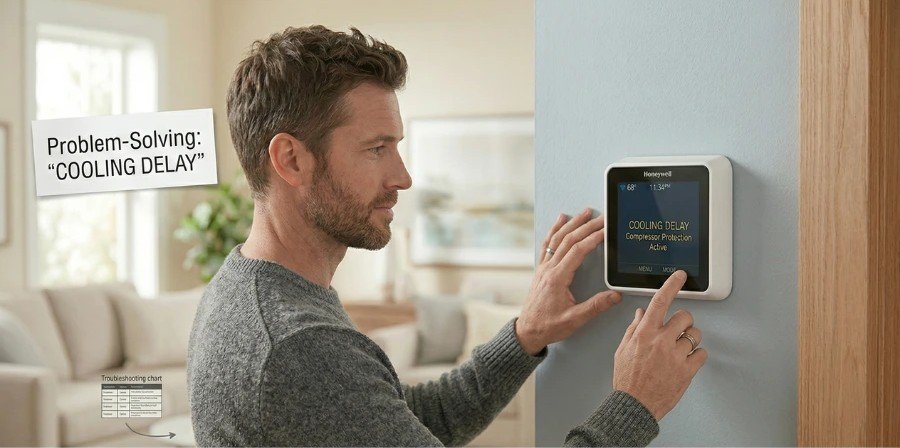
You lowered the thermostat on a hot day. Five minutes passed. No cold air arrived. This is one of the most misread behaviors in residential thermostats and one of the most clearly documented in every Honeywell manual.
The compressor delay is a built-in pause after the air conditioning shuts off. It protects the compressor from damage caused by restarting it too quickly. Honeywell Home and Reside manuals for the T6 Pro, T5, and RTH9585WF all describe this delay. Most models pause for three to five minutes. Do not press buttons during the wait. Every button press can reset the timer and extend it. The system will start on its own once the delay is complete.
Low Battery and Power Interruptions
A blank or dim screen almost always points to a power issue, not hardware failure. Honeywell thermostat manuals recommend replacing batteries annually. The T5 and T6 Pro both show a low battery indicator before the screen goes blank. Replace batteries before that indicator appears.
Smart Honeywell Home models like the T6 Pro and RTH9585WF draw continuous power through the C wire. Without a stable C -wire connection, these models can reboot randomly or go blank. If your smart thermostat behaves erratically after installation, your manual directs you to verify the C terminal connection first. A manual reset, which restores factory defaults, can also resolve post-installation issues. Your manual includes the exact reset steps for your model.
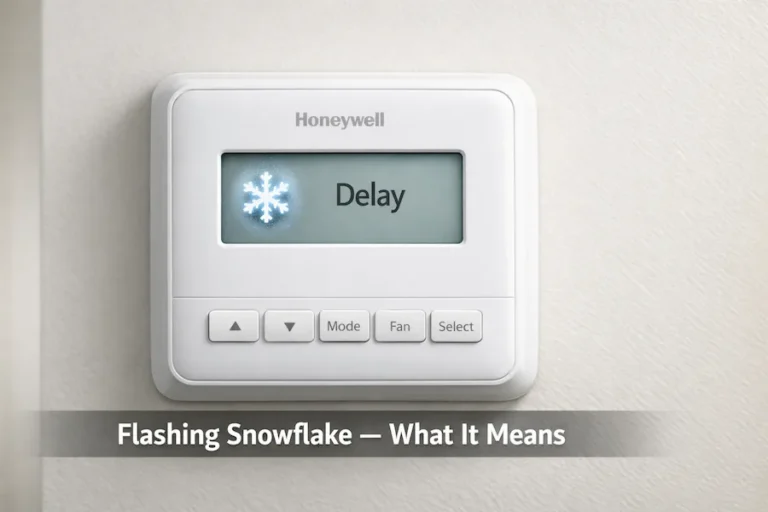
Cool On or Heat On is Flashing on the display.
A flashing Cool on or Heat One indicator means the compressor protection delay is active. The thermostat is waiting before allowing the compressor to restart after a recent shutdown. This is normal behavior and not a fault. Most models resolve this within 3 to 5 minutes without any action needed.
If the flashing continues for 5 minutes, check the compressor protection setting in the installer setup menu. On Honeywell Pro Series models, this is ISU 387. If ISU 387 was set to 0 during installation, the protection delay is disabled, and the system may not start at all. For the T6 Pro specifically, see the complete flashing snowflake guide.
How to Reset a Honeywell Thermostat
A reset returns the thermostat to its default configuration. This step is useful when the thermostat behaves incorrectly, shows unexpected settings, or stops responding to temperature changes.
Resetting clears certain stored settings such as installer configuration, schedules, or system preferences depending on the model. It does not change the physical wiring connected to the thermostat.
Before performing a reset, always confirm that the thermostat is receiving power and that the wiring connections are secure. Many thermostat problems are caused by wiring issues, low batteries, or incorrect installer setup settings rather than a software fault.
Different Honeywell thermostat models use different reset methods. The steps for Honeywell Pro Series thermostats such as the T1 Pro, T4 Pro, and T6 Pro are explained below.
Resetting Honeywell Pro Series Thermostats
Honeywell Home Pro Series thermostats typically reset through the installer setup menu or by removing power from the thermostat temporarily.
For example:
- The T1 Pro resets when installer setup values are returned to default through the ISU menu. The full procedure is explained in the Honeywell T1 Pro thermostat manual.
- The T4 Pro may require resetting the installer configuration through the setup menu depending on the issue. Detailed instructions are available in the Honeywell T4 Pro thermostat manual.
- The T6 Pro supports advanced installer setup options that can be restored to default values if configuration problems occur. The complete process is described in the Honeywell T6 Pro thermostat manual.
Each model uses a slightly different procedure, so always follow the instructions for your exact thermostat model.
When Resetting the Thermostat Helps
Resetting a thermostat can solve several common problems.
Examples include:
- thermostat not responding to temperature changes
- heating or cooling not starting correctly
- incorrect installer setup configuration
- unexpected behaviour after wiring changes
- thermostat display showing incorrect system settings
If the problem continues after resetting the thermostat, the issue may be related to the HVAC equipment itself, wiring at the air handler, or power supply problems.
If your thermostat is part of the Honeywell Home Pro Series, follow the model-specific guides for the T1 Pro, T4 Pro, or T6 Pro to reset or reconfigure installer settings correctly.
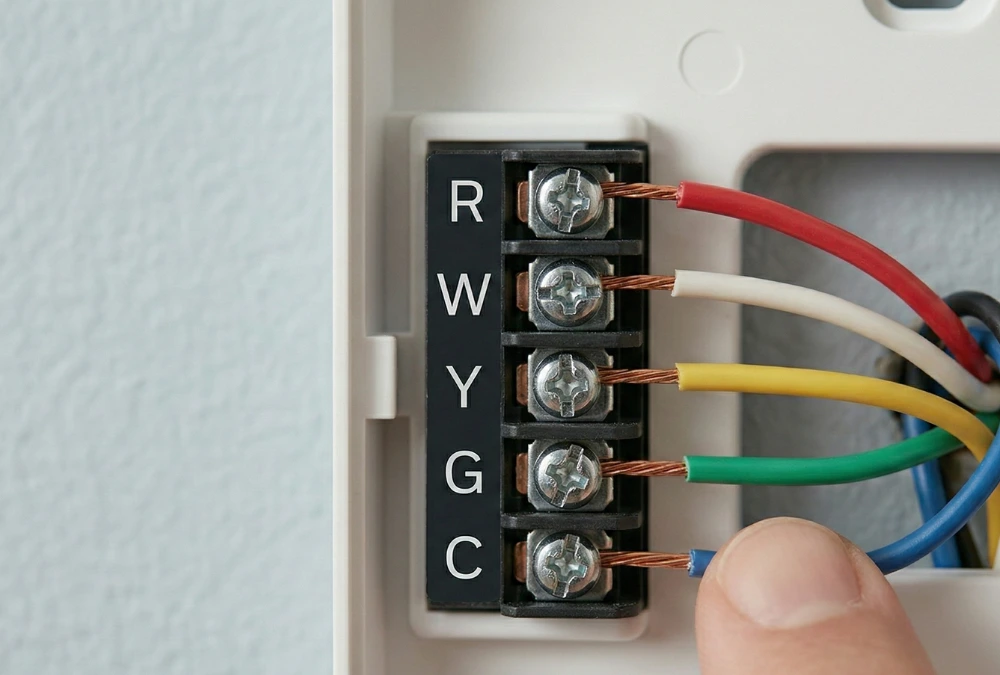
What the Wiring Labels Mean in Plain Language
Most homeowners never need to look at their thermostat wiring. But if you are checking a connection or replacing a thermostat, knowing what each label does helps you understand what is happening.
Your Honeywell manual includes a wiring diagram that labels every terminal. The R terminal carries 24-volt power. The W terminal signals the furnace for heating mode. The Y terminal signals the compressor for cooling mode. The G terminal controls the fan setting. The C terminal provides continuous power for smart models. A loose wire at any of these terminals produces symptoms that look like thermostat failure. Your manual wiring diagram shows the correct placement for your specific model.
Why Your Thermostat Reads the Wrong Temperature
The thermostat reads the air directly around it. If something nearby is affecting that air, the reading will be off. This causes the HVAC system to run at the wrong times — and the home to feel warmer or cooler than the setpoint suggests.
This is a placement issue, not a hardware fault. Honeywell Home manuals address this in the installation section. A thermostat mounted above a vent, near a window, or on an exterior wall will pick up heat or cold from those sources. The reading reflects its location, not the rest of the home. If moving the thermostat is not possible, your manual may offer a temperature offset setting to compensate.
Using the Calibration Offset in Your Manual
Several Honeywell models include a calibration or temperature offset setting in their configuration menu. This allows you to shift the displayed temperature by one or two degrees to match a separate room thermometer. It is a software adjustment that does not require any tools.
On the T6 Pro and RTH9585WF, the offset setting is found in the installer or advanced settings menu. Your Honeywell manual shows the exact navigation path for your model. If your home consistently feels warmer or cooler than the thermostat suggests, this setting is worth exploring before assuming any hardware problem.
Furnace and Heat Pump Systems Need Different Settings
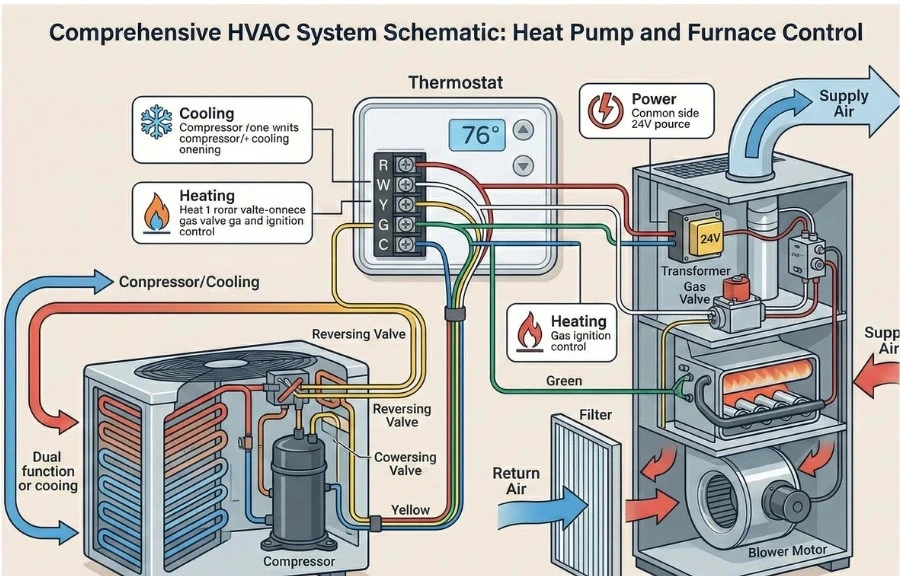
A furnace and a heat pump are different types of equipment. They respond to different thermostat signals. If your thermostat is configured for the wrong system type, it will send the wrong instructions. The result can look like complete thermostat failure.
The most common symptom of a system type mismatch is a heat pump that blows cold air when heating mode is selected. The thermostat is sending a heating signal. But the heat pump is receiving it as a cooling instruction because the system type setting is wrong. Your Honeywell Home or Resideo manual includes a system type configuration step in the installer settings. This must match your actual equipment.
How to Identify and Correct the System Type
If you are not sure what type of system you have, your manual includes a guide for identifying it. The key indicator is whether you have an O or B wire connected to the O/B terminal on your thermostat. Heat pumps use this terminal to control the reversing valve. Furnaces do not use it.
Once you identify your system type, your Honeywell manual walks through the configuration steps. On the T6 Pro, this is set during initial setup under the equipment type screen. On the RTH9585WF, it is accessed through the installer setup menu. Matching the setting to your actual system resolves many heating and cooling complaints that appear to be thermostat faults.
How to Use Your Honeywell Manual as a Diagnostic Tool
Most homeowners open their Honeywell manual during setup and never look at it again. That is a missed opportunity. The manual is not just a setup guide. It is a complete reference for your thermostat’s behavior throughout its life.
Every symptom covered in this article has a corresponding section in your Honeywell Home or Resideo manual. The compressor delay is documented. Mode behaviors are explained. Hold and schedule interactions are described. Wiring diagrams are included. When something feels wrong, the manual tells you whether it is a known behavior or a genuine fault.
Finding the Right Manual for Your Model
Honeywell produces dozens of thermostat models. Each one has its own manual with model-specific instructions. A guide written for the T5 may not match the menu structure of the T6 Pro or RTH9585WF. Using the correct manual matters.
Our Honeywell thermostat manual guides catalog documentation by model number so you can find the right one quickly. If you do not know your model number, it is printed on a label inside the thermostat cover or on the back panel. Finding your manual takes less than a minute. The answers to most thermostat questions are inside it.
Quick Troubleshooting Guide
Use this quick guide to match the symptom to the likely cause. Then confirm the details in your model manual. This prevents guesswork and keeps your settings consistent.
Frequently Asked Questions
Your Manual Is the Starting Point for Every Answer
A Honeywell thermostat that appears broken is usually following a rule. That rule is documented in your manual. Whether it is a compressor delay, a mode mismatch, a schedule hold, or a system type setting, the explanation is already written down for you.
Honeywell Home and Resideo invest considerable effort in documenting every behavior their thermostats are capable of. Models like the T6 Pro, T5, and RTH9585WF all come with detailed manuals that cover exactly the situations described in this guide. Using that manual as your first resource, rather than your last, changes how quickly you resolve problems and how confidently you manage your home comfort system.
Our Honeywell thermostat manual guides are here to help you find the right documentation for your model and get to the answers you need.
Did your Honeywell thermostat issue turn out to be a setting rather than a fault? Share your experience in the comments. It may help another homeowner skip an unnecessary service call.