Honeywell Pro Series Thermostat Manual (T6, T4 & T1 Models Explained)
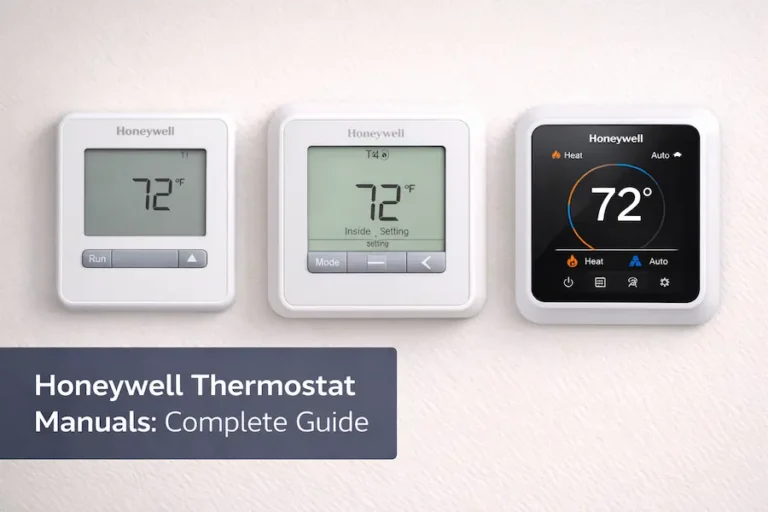
The Honeywell Pro Series thermostat manual covers the T1 Pro, T4 Pro, and T6 Pro models and explains how each one is installed, configured, and used correctly. You pulled a Honeywell Pro Series thermostat off the wall, or you just bought one, and the box is sitting on your kitchen counter. Either way, you are looking for the manual or trying to figure out which one applies to your unit. That is the right place to start.
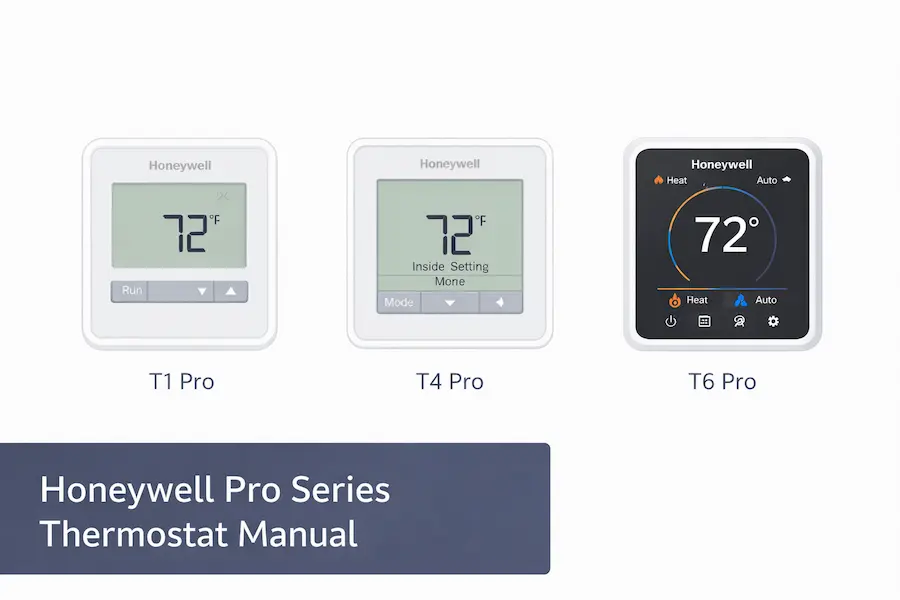
The Honeywell Pro Series thermostat manual helps explain how models like the T6 Pro, T4 Pro, and T1 Pro are installed, configured, and used. Each model comes with more than one document, and downloading the wrong PDF causes most installation confusion.
This page focuses on the manual itself. It explains what documents exist for each model, which one you need for which task, how to confirm you have the correct version, and how to navigate the sections that matter most. It is not a repair guide. If your system is running but not performing as expected, there is a separate resource for that. This guide gives you the foundation: the right document, matched to your exact thermostat, before you do anything else.
If your thermostat is not responding or behaving unexpectedly, you can also read our guide on Honeywell thermostat not working.
Quick Summary
What‘s the Honeywell Pro Series Thermostat?
The Honeywell Pro Series is a line of mid-range residential thermostats sold under the Honeywell Home brand and supported by Resideo, the company that now manages Honeywell Home products. The series covers three main models: the T6 Pro, T4 Pro, and T1 Pro. They are built for standard North American HVAC systems and written up so a homeowner with basic wiring knowledge can handle the install. Each model has its documentation, and the manuals are available for free through the Resideo support site.
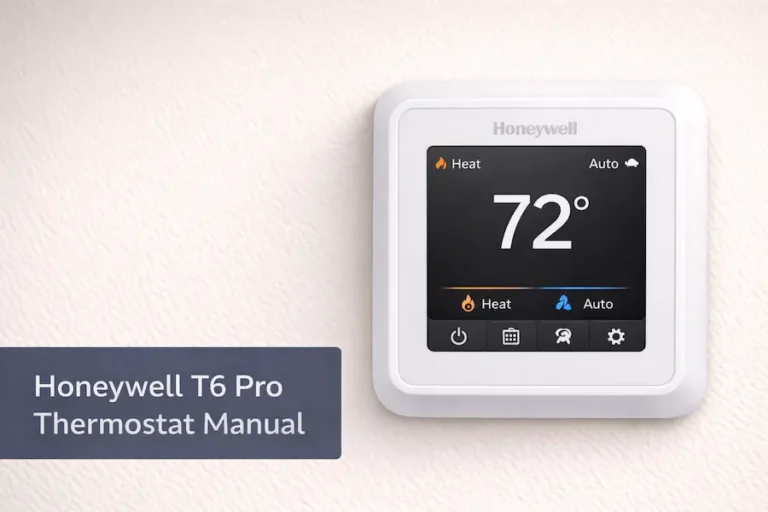
These thermostats sit in the practical middle of the Honeywell Home lineup. They are more capable than a basic unit but do not require Wi-Fi or an app to work with. The T6 Pro is the fullest featured of the three. The T4 Pro handles standard single-stage systems well at a lower price point. The T1 Pro is non-programmable and suited for situations where simplicity matters more than automation. The manual for each model reflects those differences in both length and content.
Honeywell Home and Resideo
Resideo became the manufacturer and support provider for Honeywell Home products after a corporate restructuring. You may see both names depending on when your thermostat was produced. Both resideo.com and honeywellhome.com carry the same manual library, so is a valid starting point. What matters most is that the model number on the PDF matches your unit exactly, not which site you downloaded it from.
Where to Find Your Model Number
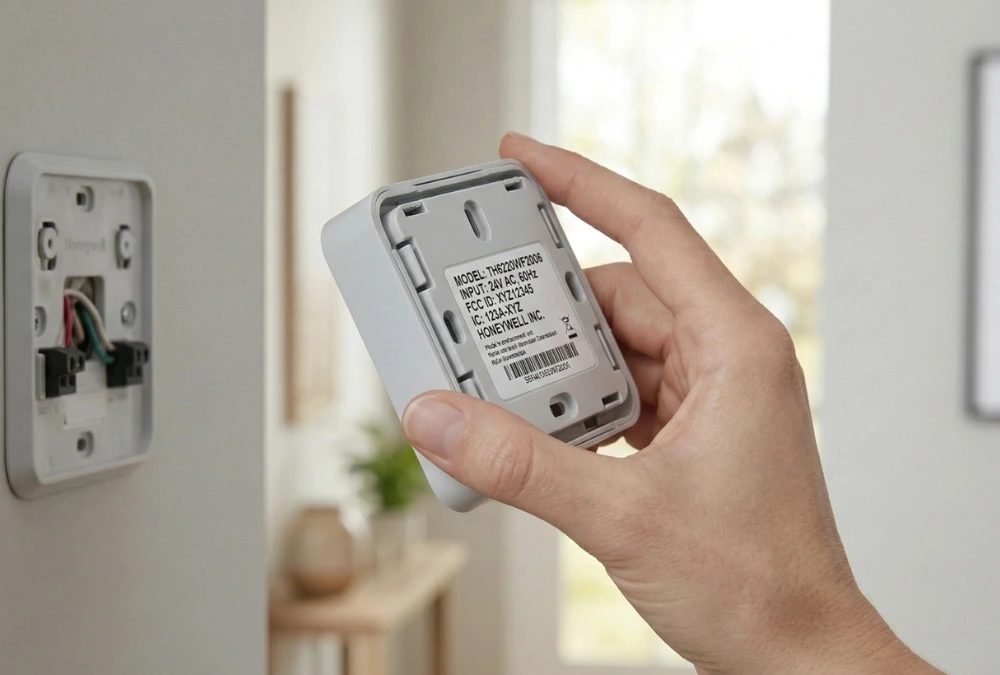
Pull the thermostat body off the wall plate by snapping it straight out. The model number is printed on a label on the back of the unit. If the label is worn, check inside the battery compartment. Write down the full model number, including the suffix, such as TH6320U2008, before searching for documentation. Two units, both called “T4 Pro,” can have different suffixes that correspond to different wiring configurations, so the complete string is what you need.
Which Honeywell Pro Series Model Should You Choose?
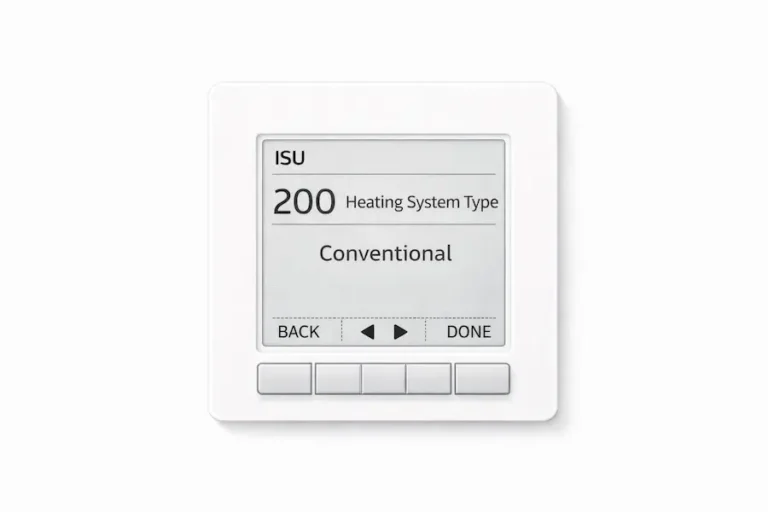
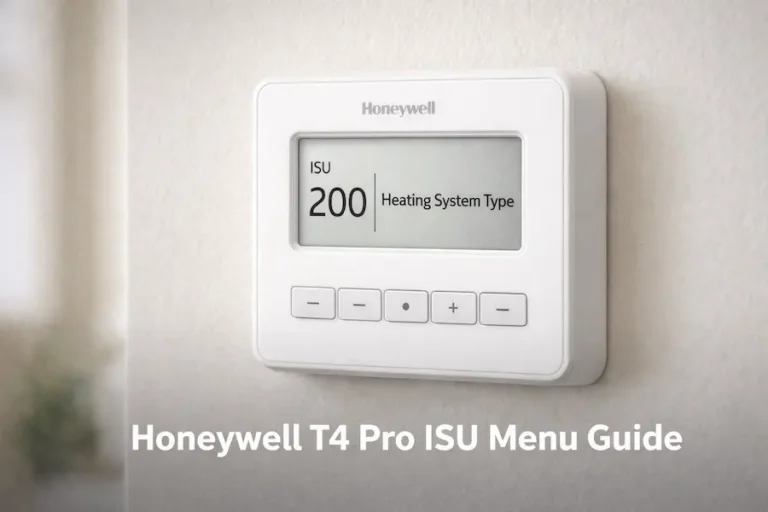
If you already have a thermostat installed and just need the manual, skip ahead. But if you are buying one for the first time, choosing the right model saves you from having to return it. The T6 Pro is the right choice if you want flexible scheduling, have a heat pump, or run a two-stage heating system. It supports the most system types and gives you the most control over your daily and weekly temperature settings. The TH6320U2008 is a common variant sold at most home improvement stores. Also, the T6 Pro’s installer setup menu gives you precise control over system type, auxiliary heat, and compressor timing—our complete T6 Pro ISU menu guide explains what each setting does and which value to choose for your specific system.
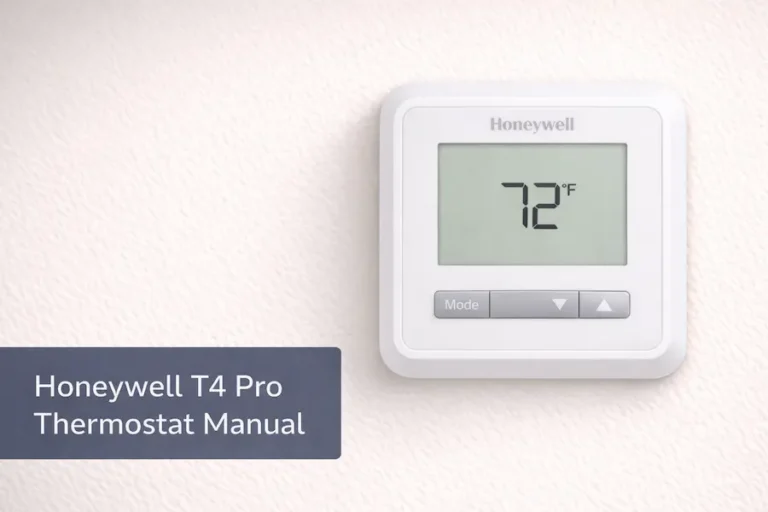
The T4 Pro is the best fit for most standard homes. It handles single-stage gas or electric heating and central air conditioning without any complications. The TH4110U2005 is one of the most widely used models in this line. The T1 Pro is the simplest of the three. It has no scheduling features at all. You set the temperature, and the system holds it. That works well for rental properties, vacation homes, or any setup where a tenant or guest should not be adjusting for a program. If you need to schedule control, the T1 Pro is not the right model.
Which Honeywell Pro Series Thermostat Manual Do You Need? (User Guide vs Installation Guide)
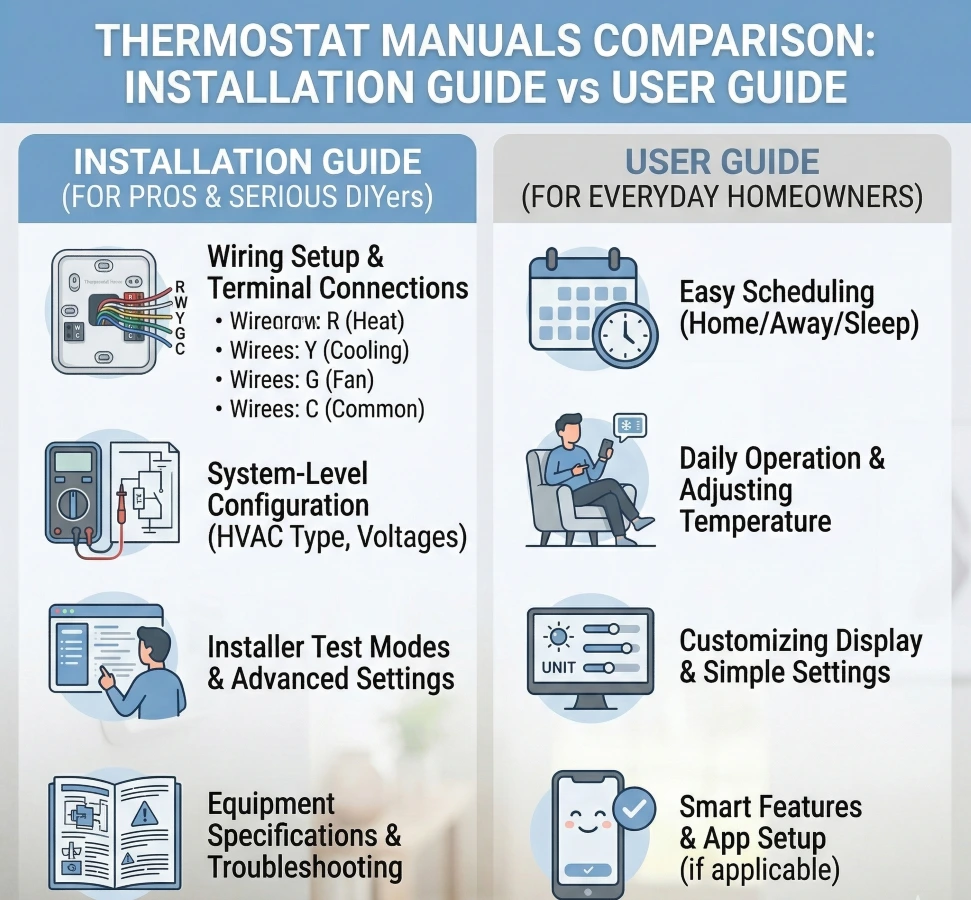
Every Pro Series model comes with two documents. Most homeowners download whichever PDF shows up first in search results. That is often a mistake. The installation guide and user guide are different in purpose, length, and audience. Treating them as the same document is a shortcut that usually causes confusion.
The installation guide is the longer of the two. It opens with a compatibility table that tells you whether your HVAC system works with the thermostat. After that comes wall plate mounting, wire connections by terminal label, and the installer setup menu. That last section is the most important part for anyone doing a first-time install.
The user guide is shorter. It handles the day-to-day side of things: switching modes, programming a schedule, managing holds, and understanding display icons. If the thermostat is already in place and you are trying to change a setting, the user guide is the only document you need to open.
When to Use Each Document
Use the installation guide when you are replacing an old thermostat, doing a first-time install, or checking whether your system type is compatible. Use the user guide for everything that happens after the thermostat is mounted and working. A common mistake is skipping the installation guide and going straight to the user guide during setup. That works fine for changing the temperature, but it means you probably skipped the installer’s setup menu, which controls how the thermostat communicates with your HVAC equipment.
The T1 Pro Manual Is Simpler
Because the T1 Pro has no scheduling feature, its user guide is noticeably shorter than the T6 Pro or T4 Pro versions. There is no programming section to work through. If you pick up what appears to be a T4 Pro manual and cannot find a scheduling section anywhere, double-check your model number. You may have a T1 Pro, or you may have downloaded the wrong document.
How to Confirm Your PDF Is the Correct Version
Downloading a manual with the right series name is not enough. The Pro Series has gone through several revisions, and wiring diagrams and installer menu options have changed between production runs. A diagram from an older variant can show a terminal configuration that does not match your physical unit. That creates real confusion during installation and, in some cases, leads to an incorrect wire connection.
The most reliable fix is simple: search by the full model number, not by the series name. Searching for ‘T4 Pro manual’ may pull up a document for TH4110U2005 when your unit is a different variant with a slightly different wiring layout. Using the exact model number string from the back of your thermostat, suffix included, gets you to the right page on the Resideo site every time.
Checking the Document Code
Every Honeywell Home manual has a document code printed at the bottom of the cover page. It looks like a short alphanumeric string, sometimes labeled ‘Part No.’ or ‘Document No.’ When the manual is updated, this code changes. If you downloaded your PDF from a third-party site, compare its document code against the version shown on the Resideo product page. A mismatch means you have an older version. Download the current one before proceeding.
Checking the Terminal Layout
Open the wiring diagram in your PDF and count the terminals shown. Then compare them to the physical terminals on your wall plate. They should match. If the diagram shows an O/B terminal for a heat pump reversing valve and your wall plate does not have one, something is off. Either you have the wrong manual, or the wrong thermostat for your system. This check takes two minutes and confirms you are working from the right document before you touch a single wire.
Wiring Terminals: What the Manual Is Asking You to Connect
The wiring section of the installation guide uses single-letter terminal labels. These are standard across the HVAC industry, so your old thermostat uses the same system. The labels are consistent, which means if you photograph the wiring on your old unit, you already know most of what you need. Before disconnecting anything, take a photo of the existing wires with your phone. It takes ten seconds and is the single most useful thing you can do before starting a thermostat swap.
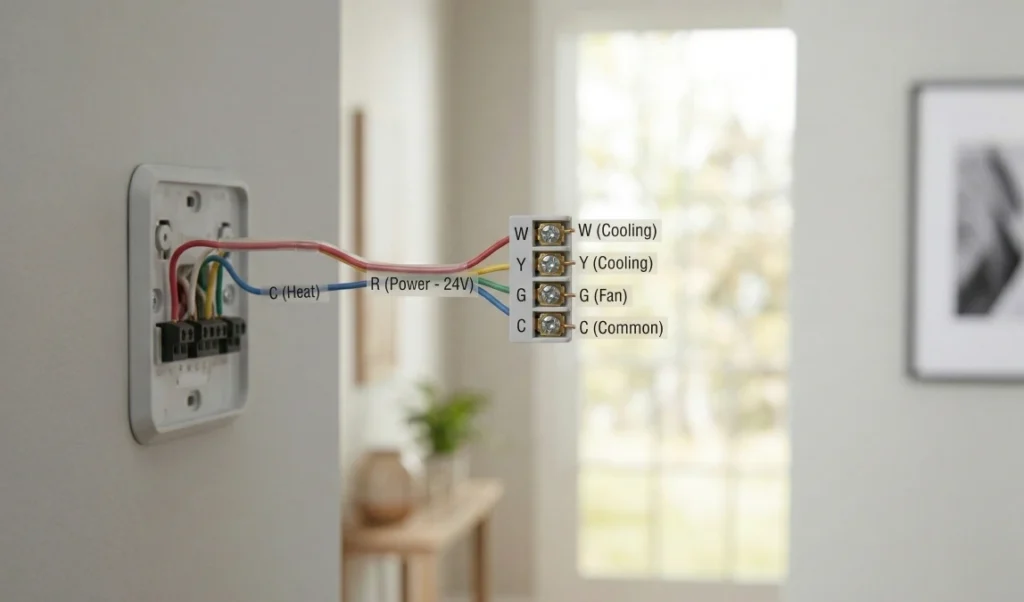
Each terminal controls one specific function. The manual includes a diagram that shows which wire goes where for your system type. Once you know what each letter does, the diagram is easy to read. If your system is a heat pump, there will be a separate diagram in the installation guide. Use that one, not the standard diagram. Connecting a heat pump using the wrong diagram is a common cause of a system that heats when it should cool.
Standard Terminal Functions
R: Power from the transformer, 24-volt AC. Some systems split this into Rc and Rh, but most homes use a single R terminal with an internal jumper.
W: Heating signal. Activates the furnace or boiler when the thermostat calls for heat.
Y: Cooling signal. Activates the compressor when the thermostat calls for cooling.
G: Fan signal. Runs the blower independently of heating or cooling.
C: Common wire. Completes the 24-volt circuit. Not all systems have one. The T4 Pro and T1 Pro can run on batteries if no C-wire is present.
Heat Pump Wiring
Heat pump systems use an O/B terminal to control the reversing valve, which switches the unit between heating and cooling mode. The T6 Pro supports this configuration and includes a dedicated heat pump wiring diagram in its installation guide. The installer setup menu also has a heat pump option that must be selected. If you skip that step, the thermostat will not control the reversing valve correctly, and your system will behave strangely regardless of how well the wiring is connected.
The Installer Setup Menu: The Section Most Homeowners Skip
The installer setup menu runs after you first connect the thermostat and power on the system. It is covered in the installation guide. The menu asks a short series of questions about your system type, fan configuration, and a few other settings. These answers control how the thermostat communicates with your HVAC equipment. Completing this correctly during installation prevents the majority of post-install complaints.
Many homeowners power the thermostat, see the display light up, and start adjusting the temperature without running through the menu. The thermostat lets you do that. But if the installer settings sit at factory defaults and your system does not match those defaults, the thermostat will not work properly. A heat pump set to conventional, or a single-stage system set to two-stage, will cause problems that look like wiring errors but are configuration issues. The installation guide walks through each menu option and includes a table showing the correct setting for common system types.
How to Enter the Menu
The button sequence to access the installer setup menu is documented in your model installation guide. On most Pro Series models, you press and hold a specific combination at first boot or navigate through the settings path on the display. If you already completed installation and need to go back and change a setting, the same section of the guide explains how to re-enter the menu. You do not lose any data by going back in.
The Settings That Matter Most
System type and C-wire status are the two most important settings in the installer menu. Getting system type wrong causes the wrong equipment to activate. Getting C-wire status wrong causes intermittent power issues over time. Both have clear instructions in the installation guide. After you complete the menu, test the system by calling for heat first, then cooling. The installation guide includes a short test procedure at the end of the setup section. Run it before closing the wall plate.
Manual Navigation Table
When something on the display looks unfamiliar, the first question is which section of the manual covers it. The table below maps common display messages and situations to the correct document and section. It is a navigation tool, not a diagnostic guide. For system-level diagnosis, the Honeywell Thermostat Not Working article on this site covers that in full.
Use this table to get to the right page in your manual faster. Each row points you to the installation guide or user guide and to the specific section where the explanation lives.
Manual Match Checklist: Before You Follow Any Steps
Go through this list before using any wiring diagram or setup instructions. Following steps from the wrong manual is a real problem, not a minor one.
Manual Match Checklist
- Confirm the exact model number from the back of the thermostat
- Search by the full model number, not just the series name
- Download both the installation guide and the user guide
- Check the PDF document code against the official product page
- Compare the terminal layout to your wall plate before wiring
- Confirm whether your system uses standard wiring or heat pump wiring
- Complete the installer setup menu before running tests
If everything above checks out and the system is still not performing correctly, that points to a system-level issue. The Honeywell Thermostat Not Working guide on this site covers that in detail.
Where to Download Honeywell Thermostat Manuals
You can download official Honeywell thermostat manuals from the Resideo (Honeywell Home) website.
Always check your thermostat model number before downloading. Using the wrong manual can lead to incorrect setup and system issues.
Frequently Asked Questions
Conclusion
The Honeywell Pro Series comes with two documents for every model. The installation guide handles wiring and setup. The user guide handles daily operation. Getting the right version of Each, matched to your exact model number, is more important than most homeowners realize before they run into problems. The full model number is on the back of the thermostat. The correct PDFs are free on the Resideo site. Starting with those two things at hand makes everything else in the process much simpler.
Download both documents, check the version code, confirm the terminal layout matches your wall plate, and complete the installer’s setup menu before testing. That process covers the most common installation mistakes and sets the thermostat up to work correctly from the start. If something still feels off after that, the troubleshooting resource on this site picks up where this guide leaves off.