Honeywell T6 Pro Thermostat Manual: Setup and Wiring Guide
The Honeywell T6 Pro thermostat manual includes two separate documents: an installation guide and a user guide. Using the wrong one leads to incorrect wiring or missed setup steps. The correct manual depends on your model number and the stage of installation.
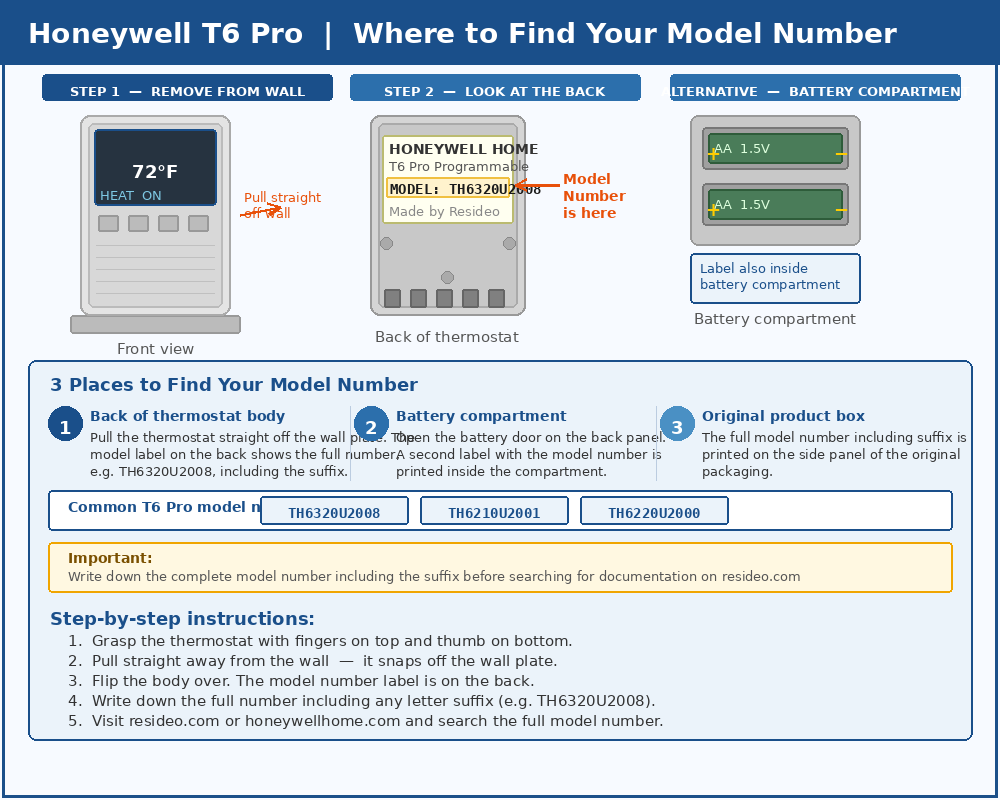
Common T6 Pro models include TH6320U2008, TH6220U2000, and TH6210U2001.
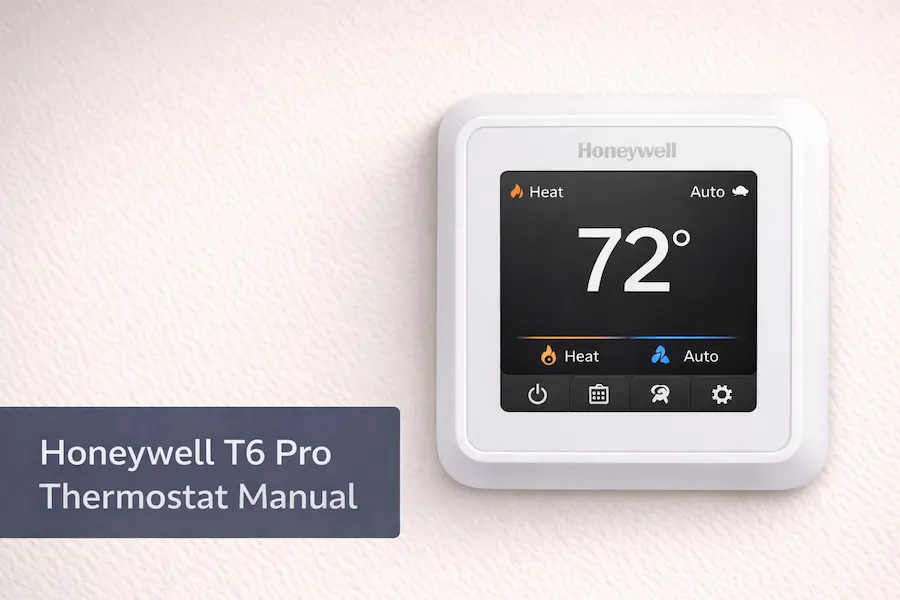
The Honeywell T6 Pro thermostat manual is the official documentation for installing and operating the thermostat. It explains wiring, system compatibility, and how to complete the installer setup correctly.
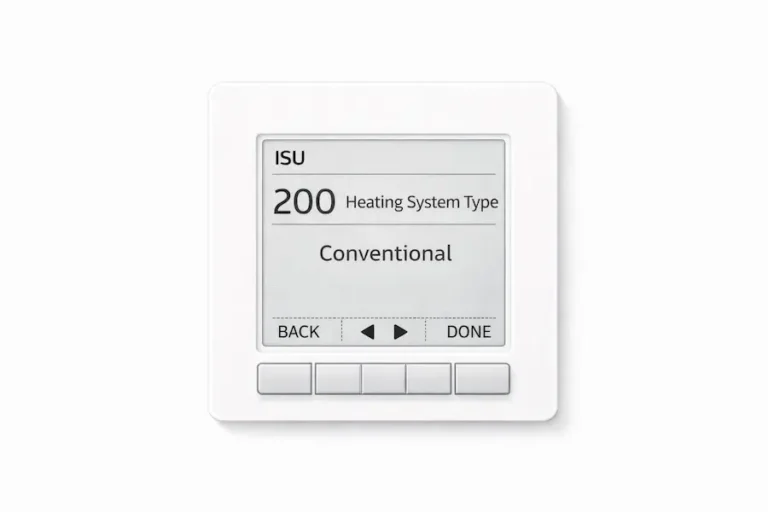
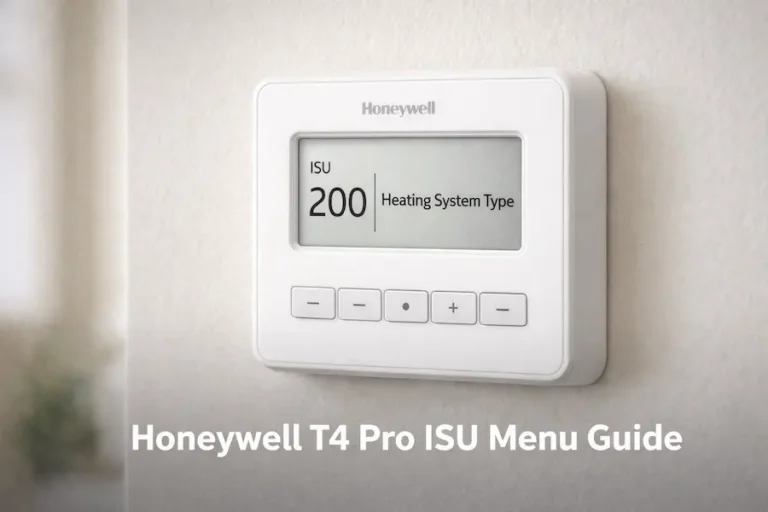
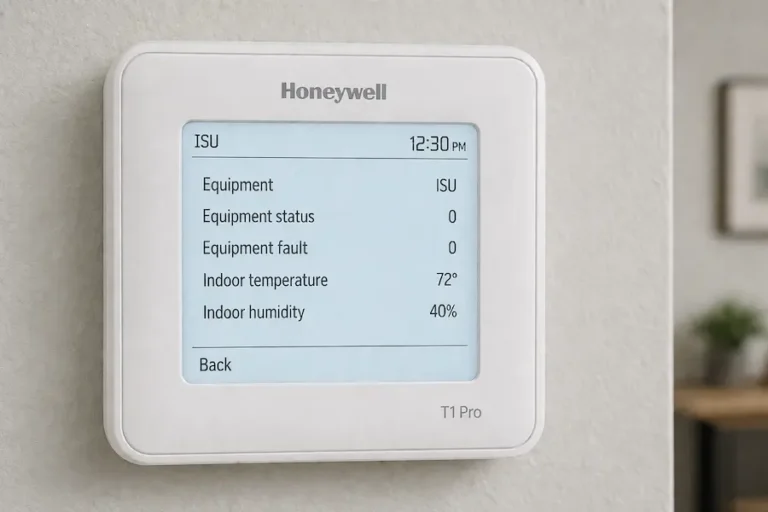
If you need to configure heat pump staging, balance point temperature, or auxiliary heat lockout, the Honeywell T6 Pro ISU menu guide walks through every ISU setting in sequence so you can complete the setup without missing a step.
- The Honeywell T6 Pro thermostat uses two documents: an Installation Guide and a User Guide.
- The Installation Guide explains wiring, HVAC compatibility, and installer setup.
- The User Guide explains system modes, fan settings, scheduling, and display icons.
- Most installation issues occur when the installer setup menu is skipped.
What Is the Honeywell T6 Pro Thermostat Manual?
The Honeywell T6 Pro thermostat manual is the official documentation for installing and operating the Honeywell Pro Series T6 Pro thermostat. The documentation is divided into two separate PDF files. The installation guide explains wiring, HVAC compatibility, and installer setup configuration. The user guide explains daily thermostat operation, including system modes, fan settings, scheduling, and display messages. Understanding which document to use is the key to installing and operating the thermostat correctly.
Is Your Thermostat a Honeywell T6 Pro?
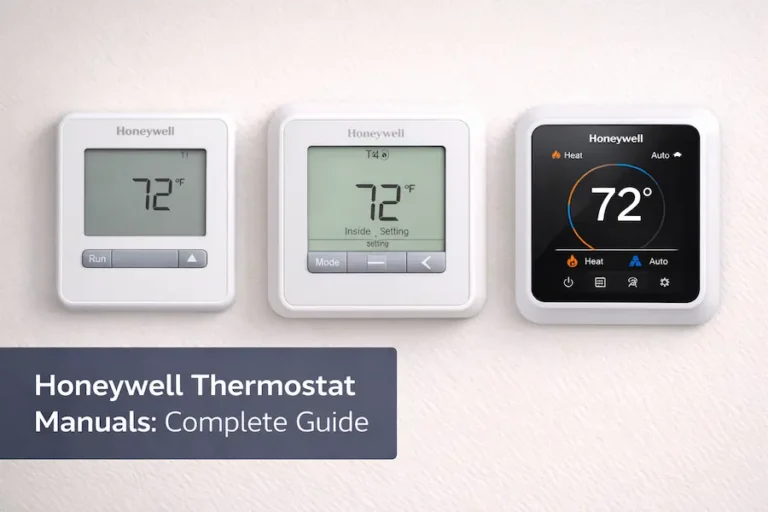
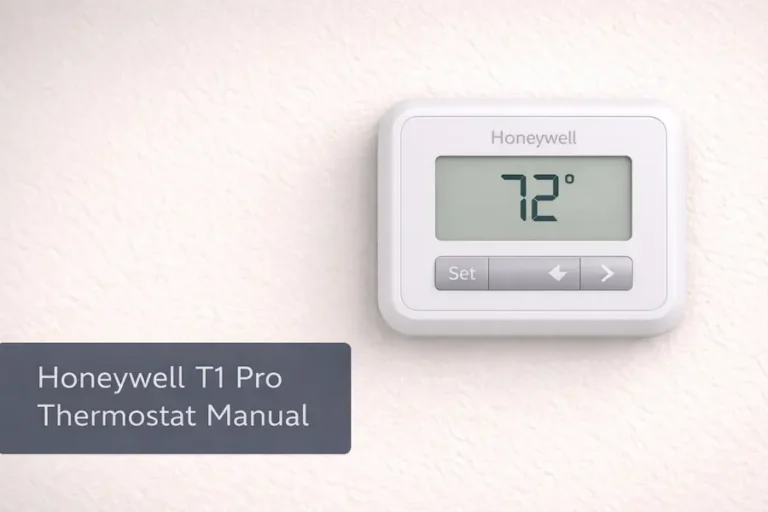
Several Honeywell Home thermostats look nearly identical when mounted on a wall. The T6 Pro, T4 Pro, and T1 Pro share similar housing and display. Using the wrong thermostat installation guide causes real problems, particularly in the wiring and installer setup sections where diagrams and menu options differ between models. Confirm that you have a T6 Pro before opening any PDF.
The T6 Pro is manufactured by Honeywell Home and supported through Resideo, the company that manages the Honeywell Home product line. Both resideo.com and honeywellhome.com point to the same documentation library. Either site is a valid starting point. What matters is that the model number on your thermostat matches the document you download.
T6 Pro vs T4 Pro vs T1 Pro
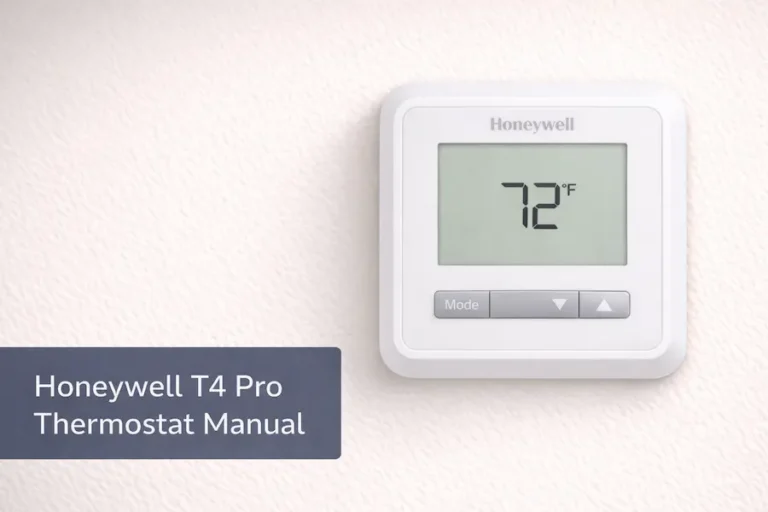
The T6 Pro supports flexible 7-day scheduling, heat pump systems, and two-stage HVAC configurations. The T4 Pro handles single-stage heating and cooling with standard 7-day programming. The T1 Pro is non-programmable. If your thermostat has no programming menu, you have a T1 Pro. Each model has its own thermostat installation guide and the wiring diagrams are not interchangeable. For basic single-stage systems, see the Honeywell T4 Pro thermostat manual.
| Model | Programmable | System Support | Best For |
|---|---|---|---|
| T1 Pro | No | Single-stage systems | Simple manual temperature control |
| T4 Pro | Yes (7-day) | Single-stage heating and cooling | Basic programmable homes |
| T6 Pro | Yes (Flexible 7-day) | Single-stage, two-stage, heat pumps | Advanced HVAC systems |
Where to Find Your Model Number
Snap the thermostat body off the wall plate by pulling it straight out. The model number is on a label on the back. If the label is worn, check the battery compartment or original box. Common T6 Pro model numbers include TH6320U2008, TH6210U2001, and TH6220U2000. Write down the full number, including the suffix, before searching for your manual
Which Honeywell T6 Pro Manual Do You Need?
The T6 Pro comes with two separate documents. Downloading only one is the most common documentation mistake homeowners make. Both are available as free PDFs on resideo.com and HoneywellHome.com. Search using your full model number, save both files, and use the right one for the task at hand.
Thermostat Installation Guide
The thermostat installation guide covers HVAC compatibility, wall plate mounting, wiring by terminal label, and the installer setup menu. It includes a thermostat wiring diagram for conventional systems and a separate one for heat pump configurations. Use this document during a new installation or thermostat replacement.
Thermostat User Guide
The thermostat user guide covers daily operation: system modes, fan settings, scheduling, hold settings, and display icons. It also includes a short section explaining common display messages. Once installation is complete, this is the only document you need to return.
Which Document to Start With?
For a new installation, start with the thermostat installation guide. Read the HVAC compatibility section before touching the wires. Complete the wiring and installer setup menu before powering on. Switch to the thermostat user guide only after installation is confirmed. Skipping the installation guide almost always means the installer menu was never completed, which is the source of most post-install problems.
Understanding the Honeywell T6 Pro Wiring System
The wiring section of the thermostat installation guide uses single-letter terminal labels standard across the residential HVAC industry. Before disconnecting anything, photograph the existing wiring. The guide includes two thermostat wiring diagrams: one for conventional systems and one for heat pumps. Using the wrong diagram is the most common installation mistake, so confirm your system type first.
Standard Terminal Functions: R, W, Y, G, C
R: 24-volt AC power from the transformer. Most homes use a single R terminal with an internal jumper.
W: Heating signal. Activates the furnace or boiler when the thermostat calls for heat.
Y: Cooling signal. Activates the compressor when cooling is needed.
G: Fan signal. Runs the blower independently of heating or cooling.
C: Common wire. Completes the 24-volt circuit. The T6 Pro can run on batteries if no C-wire is present.
Heat Pump Wiring and the O/B Terminal
Heat pump systems use an O or B terminal to control the reversing valve, which switches the system between heating and cooling. The T6 Pro supports heat pump wiring and includes a dedicated diagram in the thermostat installation guide. The thermostat installer settings must also be set to heat pump mode, or the reversing valve will not operate correctly.
Quick Troubleshooting Guide
If the display is on but the system does not respond, check the thermostat installer settings. If the cooling icon flashes, the compressor protection delay is active and will clear on its own. A schedule that stopped running usually means a permanent hold is active. A blank screen points to power loss through the batteries or C-wire. The table below shows where each explanation lives in the documentation.
| What You See | What the Manual Calls It | Where to Find It |
|---|---|---|
| Flashing snowflake | Compressor protection delay | User Guide: Cooling Operation |
| "Wait" message | System protection delay | User Guide: Display Messages |
| Schedule not running | Permanent Hold | User Guide: Hold Settings |
| Fan running continuously | Fan mode set to On | User Guide: Fan Settings |
| Blank screen | Power loss | Installation Guide: Wiring section |
| System mode not responding | Incorrect installer setting | Installation Guide: Installer Setup Menu |
How the T6 Pro Installation Guide Explains the Installer Setup Menu
The installer setup menu is a one-time configuration sequence covered in the thermostat installation guide. It runs after the thermostat is first wired and powered on. The menu asks for your system type, C-wire status, and other thermostat installer settings. The installation guide includes a table inside this section that maps each option to the correct choice for common HVAC configurations. Reading that table before entering the menu makes the process straightforward.
How to Enter the Menu
The button sequence is in the thermostat installation guide under the setup section. On most T6 Pro models, you press and hold specific buttons at first boot or navigate through the display settings. The menu can be re-entered after installation to correct a setting without losing programming data.
Key Settings to Configure
System type is the most critical setting. It must match your actual HVAC equipment, or the wrong mode will activate. C-wire status affects power stability over time. The compressor protection delay controls the flashing snowflake icon during cooling. That icon is not an error. It confirms the protection feature is running and the system will start after a short wait.
Understanding the Main Settings in the T6 Pro User Guide
Once installation is complete, the thermostat user guide covers everything needed for daily use. Most settings are accessible from the home screen. The guide opens with a labeled display diagram, which makes the rest of the document easier to follow before adjusting any settings.
System Modes
Heat activates the furnace when the temperature drops below the setpoint. Cool activates the air conditioning above it. It auto-switches between the two automatically. Emergency Heat is for heat pump systems with auxiliary heating only. Do not activate it on systems without auxiliary heat.
Fan Modes
It auto-runs the fan only during active heating or cooling. It runs continuously. Circulate runs the fan at timed intervals to improve air distribution. Auto is the standard and most energy-efficient setting for most homes.
Scheduling on the T6 Pro
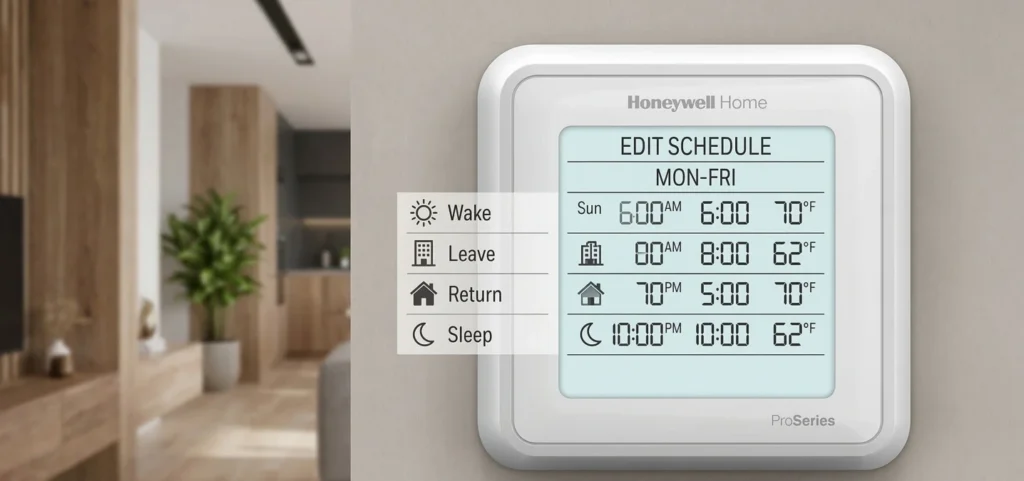
The T6 Pro supports flexible 7-day scheduling with four daily periods: wake, leave, return, and sleep. Each has a start time and temperature setpoint. A permanent hold overrides the schedule indefinitely. To resume the program, press Cancel, Hold, or Run Schedule on the display.
Manual Match Checklist: Before You Follow Any Steps
Confirm you are using the correct manual before acting on any instruction. Thermostat wiring diagrams and thermostat installer settings differ between model variants. This checklist takes two minutes and prevents the most common manual-related mistakes.
Complete every item before opening the wiring section or installer setup menu.
- Confirm your exact model number from the label on the back of the thermostat body.
- Search resideo.com with the full model number including suffix, such as TH6320U2008.
- Download both the thermostat installation guide and thermostat user guide as separate PDFs.
- Check the document version code on the PDF cover against the Resideo product page.
- Confirm the thermostat wiring diagram matches the terminal layout on your wall plate.
- Select the correct diagram type: standard or heat pump.
- Complete the installer setup menu before testing the system.
Where to Download the Official Honeywell T6 Pro Manual
Download T6 Pro documentation only from resideo.com or honeywellhome.com. Third-party sites often host outdated versions with incorrect thermostat wiring diagrams. Enter your full model number in the Resideo search bar, open the product page, and go to the Documents or Support tab. Download the thermostat installation guide and the thermostat user guide as separate files and save both.
When the Manual Is Not Enough
The thermostat installation guide and thermostat user guide cover wiring, setup, and daily settings thoroughly. They do not cover deeper HVAC troubleshooting. If your thermostat is installed correctly but still behaves unexpectedly, the issue likely involves HVAC compatibility or system wiring beyond the thermostat. For those situations, see the Honeywell Thermostat Not Working guide on this site.
Need deeper troubleshooting?
The T6 Pro manuals cover installation and settings but not system-level HVAC faults. If your thermostat is installed correctly but still behaves unexpectedly, see our dedicated guide: Honeywell Thermostat Not Working.
Frequently Asked Questions
Conclusion
The Honeywell T6 Pro comes with two documents that serve different purposes. The thermostat installation guide handles wiring and setup. The thermostat user guide handles daily operation. Confirming your exact model number before downloading and completing the installer setup menu before testing are the two steps that prevent most installation problems.
Download both PDFs from Resideo, check the version code, confirm the thermostat wiring diagram matches your wall plate, and complete the installer menu before powering the system. Once the thermostat is running correctly, the user guide covers everything else.