Honeywell T1 Pro Thermostat Manual: Wiring, ISU Menu and User Guide Explained
You unbox the Honeywell T1 Pro, mount it on the wall, and then search for the scheduling menu. It does not exist. The T1 Pro is a non-programmable thermostat, and the Resideo manual does not make this clear upfront.
The T1 Pro is the simplest thermostat in the Honeywell Home Pro Series and is designed for systems that do not require programmable scheduling. Many homeowners download the Honeywell T1 Pro manual but struggle to understand the wiring diagrams or installer setup menu. This guide explains those sections in plain language.
Resideo publishes two documents for this thermostat: the Installation Instructions Guide and the User Guide. This guide explains what each one covers, how to wire both T1 Pro models, and how to work through the ISU menu correctly.
Quick Answer
The Honeywell T1 Pro thermostat manual consists of two documents: the Installation Instructions Guide and the User Guide. The installation guide covers wiring, the UWP Mounting System, and the ISU menu. The user guide covers system modes, fan settings, and daily operation. The T1 Pro is non-programmable. There is no schedule menu. These manuals are published by Resideo and available through the Honeywell Home support website.
What Is the Honeywell T1 Pro Thermostat?
The Honeywell T1 Pro is a non-programmable thermostat made by Resideo Technologies, Inc. and sold under the Honeywell Home brand. It mounts using the UWP Mounting System and comes in two models. The TH1110D2009 supports conventional heat pump systems. The TH1010D2000 supports conventional systems only. Both documents are free at resideo.com and honeywellhome.com.
The Honeywell T1 Pro thermostat is a non-programmable digital thermostat designed for simple residential HVAC systems with one stage of heating and cooling. The T1 Pro belongs to the Honeywell Home Pro Series product line manufactured by Resideo Technologies.
| Feature | Honeywell T1 Pro |
|---|---|
| Programmable | No |
| Scheduling | Not available |
| System support | Conventional or heat pump (TH1110D2009 only) |
| Documents | Installation Guide and User Guide |
| Manufacturer | Resideo / Honeywell Home |
How to Use the Honeywell T1 Pro Thermostat Manual
The two documents serve different readers at different stages of installation. Knowing which to open first saves time and prevents the most common setup errors.
The Installation Instructions Guide is for the installer. It covers the UWP Mounting System, wiring terminals, slider tab settings, and the Installer Setup (ISU) menu. Open this before powering on the thermostat.
The User Guide is for the homeowner. It covers system modes, fan modes, compressor protection, backlight behaviour, and battery replacement. Open this after installation is complete. If your system is not heating or cooling correctly, the ISU settings inside the Installation Instructions Guide are the first place to check.
Where the T1 Pro Is Commonly Installed
The T1 Pro is commonly installed in rental properties, garages, basements, and simple HVAC systems where scheduling is not required. Contractors also use it as a straightforward replacement for older non-programmable thermostats. The Honeywell Pro Series thermostat guide explains how the T1, T4, and T6 models differ in features and installation.
Is This Thermostat a Honeywell T1 Pro?
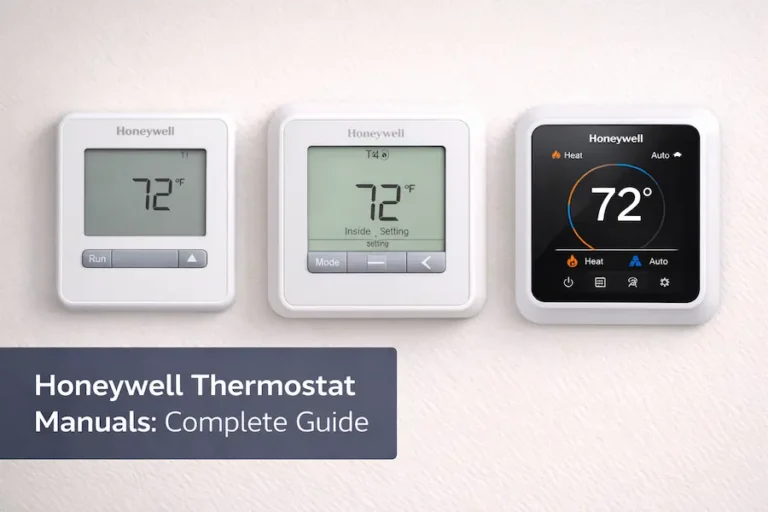
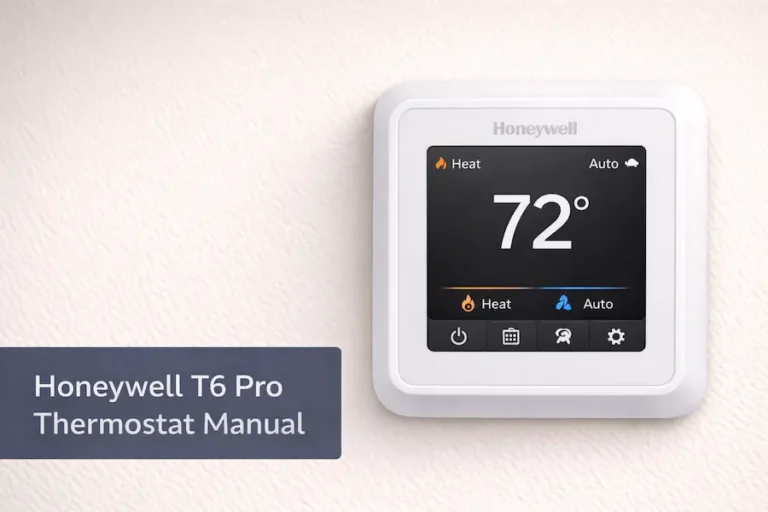
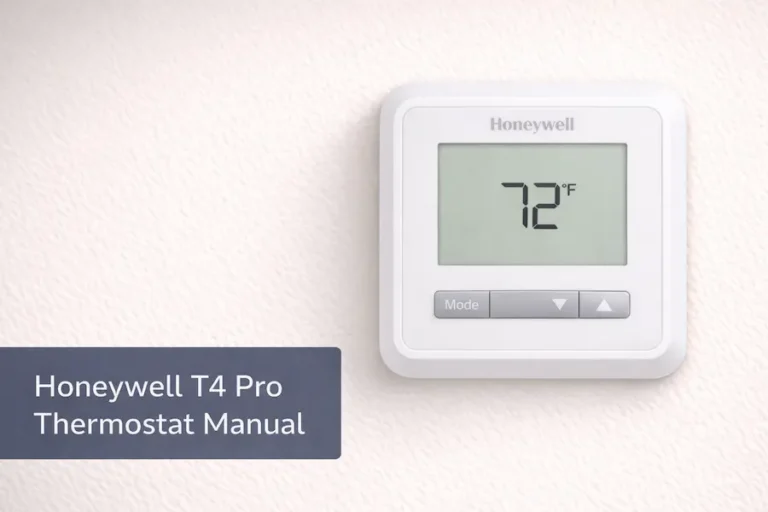
The T1 Pro looks like the T4 Pro and T6 Pro. Check the model number label on the back of the unit before following any wiring or ISU instructions.
How the T1 Pro Differs from the T4 Pro and T6 Pro
| Feature | T1 Pro | T4 Pro | T6 Pro |
|---|---|---|---|
| Programmable | No | Yes | Yes |
| Scheduling | None | 7-day, 5-2, 5-1-1 | Flexible 7-day |
| System stages | Single-stage | Single-stage | Single and multi-stage |
| Heat pump support | TH1110D2009 only | TH4210U2002 only | All variants |
| ISU menu depth | Basic | Standard | Advanced |
| Model numbers | TH1110D2009 / TH1010D2000 | TH4110U2005 / TH4210U2002 | TH6320U2008 / TH6210U2001 |
All three models use the same UWP mounting system. The key difference is scheduling. The T1 Pro has none.
T1 Pro Model Numbers: TH1110D2009 vs TH1010D2000
The TH1010D2000 supports conventional systems only and has no O/B terminal. The TH1110D2009 adds heat pump capability through the O/B terminal with one stage of heating and one stage of cooling without auxiliary heat support. If your heat pump requires auxiliary heat, the TH1110D2009 is incompatible. If your system is a conventional heat pump without AUX, TH1010D2000 will not work, but TH1110D2009 will.
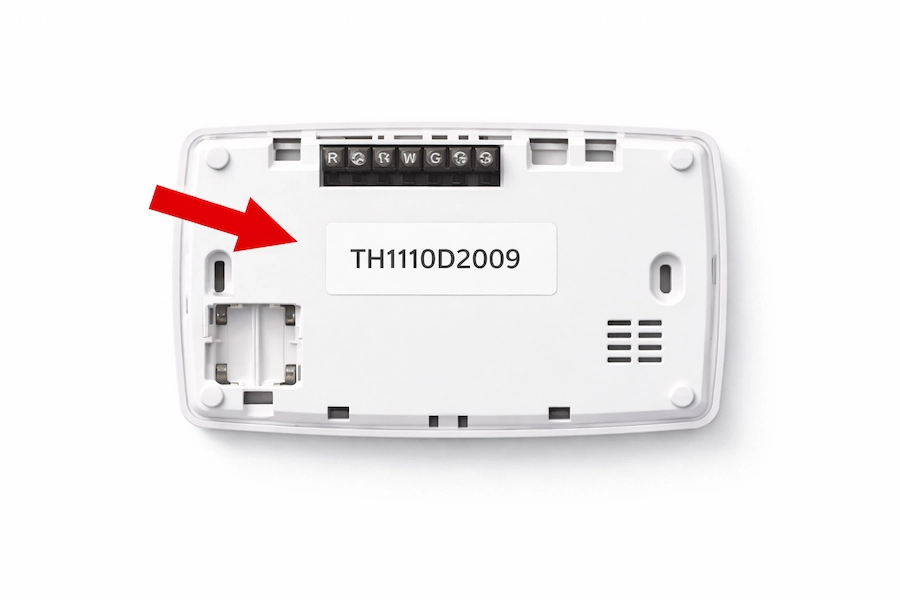
Where to Find Your Model Number
Pull the thermostat body from the UWP wall plate. The model number is on a white adhesive label on the back of the unit. It reads either TH1110D2009 or TH1010D2000.
Why the T1 Pro Has No Scheduling
The Honeywell T1 Pro is non-programmable by design. There is no schedule menu, no time periods, and no Wake, Away, Home, or Sleep settings on any T1 Pro model. Temperature is adjusted manually using the up and down buttons.
If you need scheduling, the T4 Pro supports 7-day, 5-2, and 5-1-1 formats, and the Honeywell T4 Pro thermostat manual explains programmable schedules in detail. The T6 Pro supports flexible 7-day programming. Both use the same UWP Mounting System, so no rewiring is needed to upgrade. The Honeywell Pro Series thermostat guide explains the full differences between T1, T4, and T6 models.
Which T1 Pro Document Do You Need?
The right document depends on where you are in the process. Installers need the Installation Instructions Guide first. Homeowners managing day-to-day settings need the User Guide.
Honeywell Home T1 Pro Installation Instructions Guide
This covers the UWP Mounting System, slider tab settings, wiring diagrams for conventional heat pump systems, and the full Installer Setup (ISU) menu. Open this before wiring begins.
Honeywell Home T1 Pro User Guide
This covers system modes, fan modes, compressor protection, Fahrenheit or Celsius display, backlight, and battery replacement. Open this after installation is complete.
Which Document to Open First
To install the thermostat, open the installation instructions guide first. Is it already installed and ready for operation? Open the User Guide. Need to change an ISU setting: return to the Installation Instructions Guide.
Understanding the T1 Pro Wiring Terminals
The T1 Pro UWP wall plate uses the standard Honeywell Home Pro Series terminal layout. Use 18 to 22 gauge thermostat wire. Shielded cable is not required.
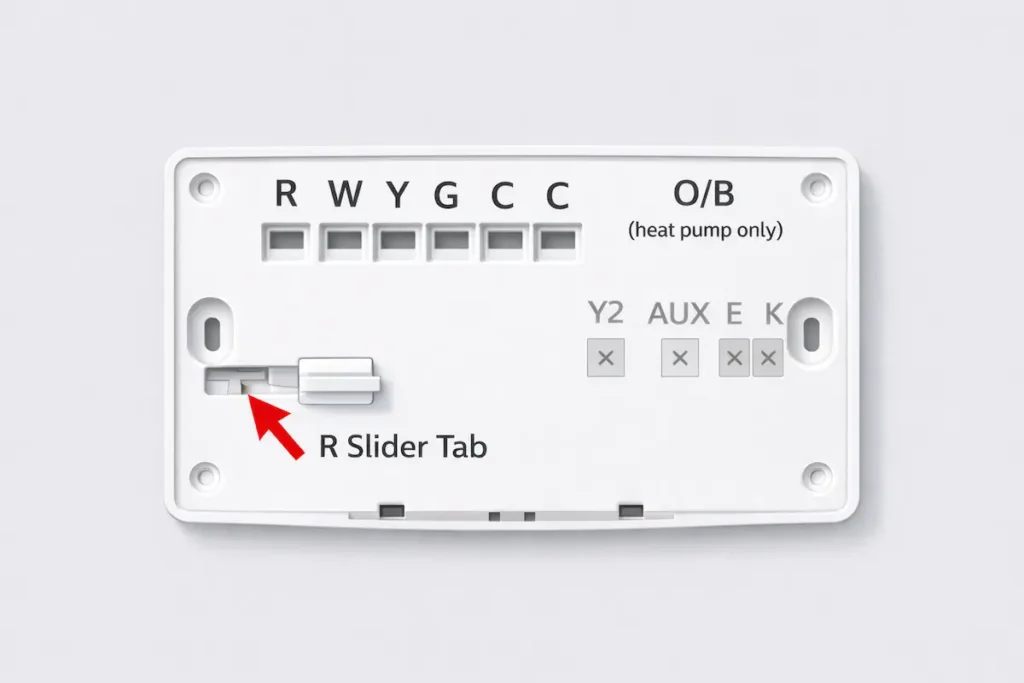
Standard Terminals: R, W, Y, G, C
| Terminal | Name | Function |
|---|---|---|
| R | Power | 24-volt AC power from the system transformer |
| W | Heat | Heating signal to furnace or boiler |
| Y | Cool | Cooling signal, activates the compressor |
| G | Fan | Controls the blower fan independently |
| C | Common | Completes 24-volt circuit. Enables continuous backlight. |
| O/B | Reversing valve | Heat pump only. TH1110D2009 model only. |
Terminals Not Used on the T1 Pro
Several terminals appear on the UWP wall plate but are not used on the T1 Pro. Leave them empty. Connecting wires to these terminals causes incorrect operation.
| Terminal | Why It Appears | Action |
|---|---|---|
| Y2 | Multi-stage systems | Leave empty on T1 Pro |
| AUX / W2 | Auxiliary heat | Leave empty on T1 Pro |
| E | Emergency heat | Leave empty on T1 Pro |
| K | Dehumidification | Leave empty on T1 Pro |
| L/A | Communicating systems | Leave empty on T1 Pro |
The R Slider Tab on the UWP Mounting System
For single transformer systems, leave the R slider tab in the default R position. For dual transformer systems, move it to the lower two-wire position and connect the common wire from the cooling transformer to the C terminal.
Heat Pump Wiring: TH1110D2009 Only
The O/B terminal controls the reversing valve on heat pump systems. In the ISU menu, set O/B to energize on cool (O) or on heat (B) per your equipment specification. The TH1010D2000 has no O/B terminal and cannot control a heat pump.
How the T1 Pro Installation Guide Explains the ISU Menu
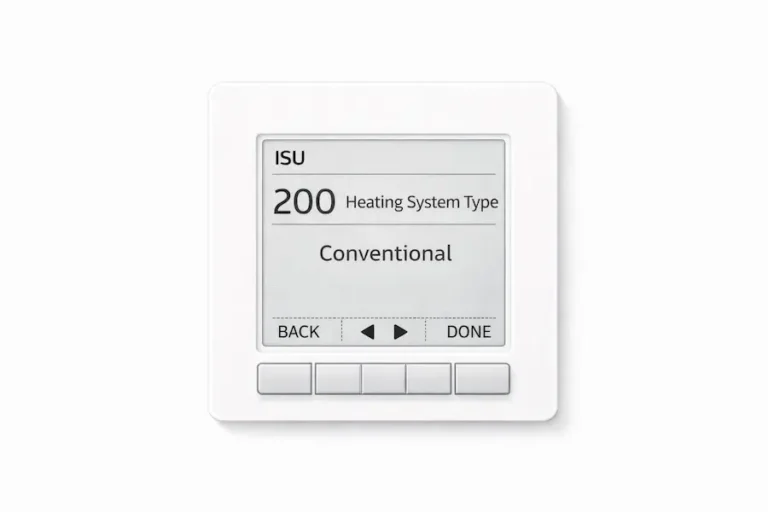
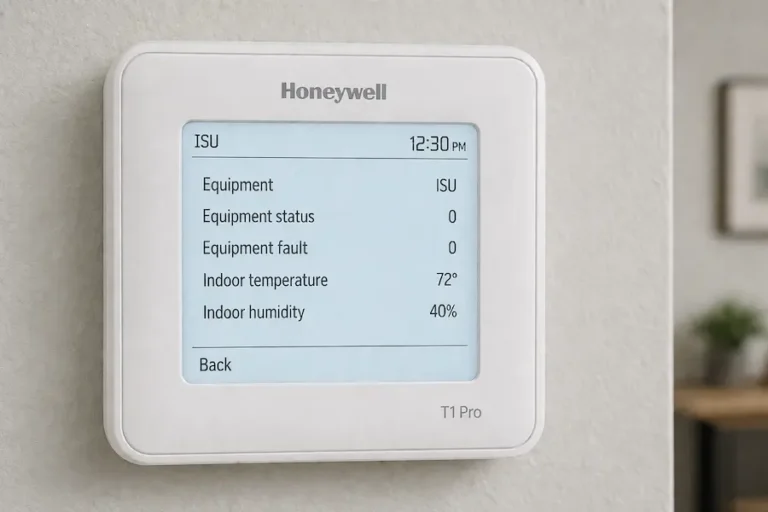
The ISU menu is where the Honeywell Home T1 Pro is configured for your specific HVAC system. Getting this section right determines whether the thermostat heats and cools correctly.
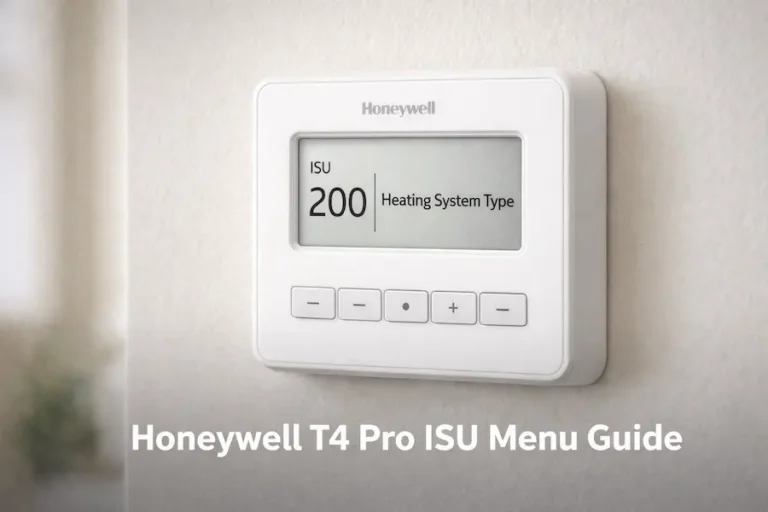
How to Enter the ISU Menu
Press and hold the Menu button for approximately 3 seconds. Use the Edit button to change values and the Next button to advance between settings. Press Done to save each selection. Refer to the T1 Pro Installation Instructions Guide for the complete ISU number sequence.
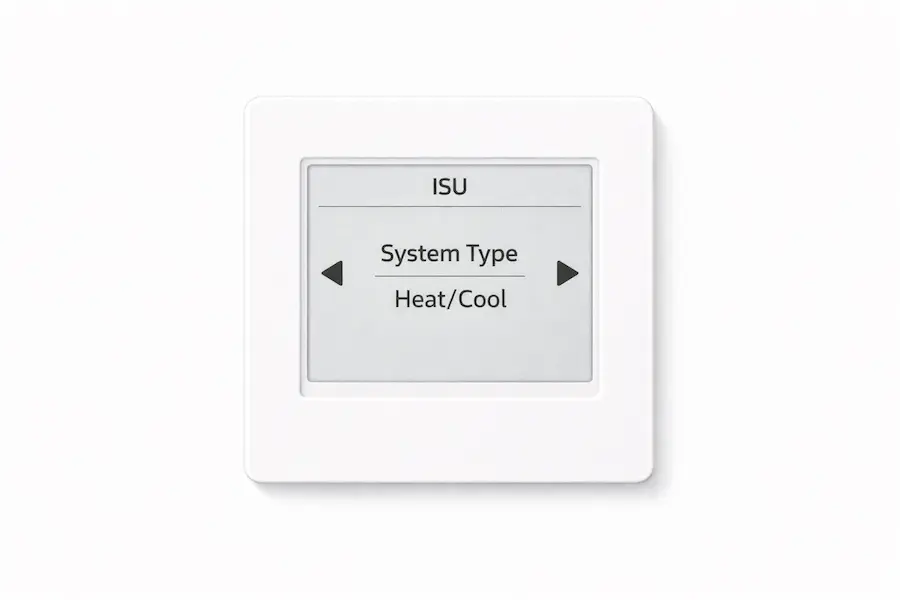
Key ISU Settings to Configure
System type is the most critical setting. An incorrect system type causes the thermostat to operate the wrong equipment or fail to respond entirely.
| ISU Setting | Options | What to Check |
|---|---|---|
| System type | Conventional / Heat pump | Must match your actual HVAC equipment |
| Fan control | Gas / Electric | Controls blower behaviour during heating |
| O/B valve setting | O (cool) / B (heat) | Heat pump only. TH1110D2009 only. |
| Temperature high limit | 32F to 90F | Maximum heat setpoint allowed |
| Temperature low limit | 50F to 99F | Minimum cool setpoint allowed |
| Temp display offset (ISU 1420) | -3F to +3F | Corrects displayed vs actual room temperature |
| Compressor stages | 1 stage only | T1 Pro supports single-stage systems only. TH1110D2009 only. |
Saving and exiting the ISU Menu
Press Done after each setting. The display returns to normal operation automatically. Test heating and cooling after completing the ISU menu to confirm that all settings are correct.
Understanding the T1 Pro User Guide Settings
The Honeywell Home T1 Pro User Guide covers the controls a homeowner uses daily. These settings are accessed from the main display without entering the ISU menu.
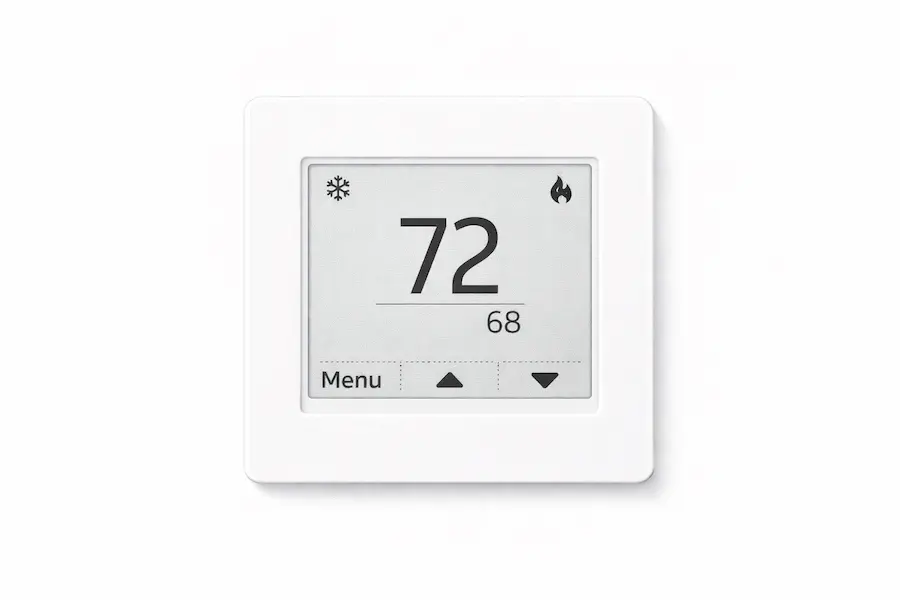
System Modes: Heat, Cool and Off
Press Menu to access the Mode option. The TH1010D2000 offers Heat, Cool, and Off. The TH1110D2009 adds heat pump modes based on ISU configuration. Neither T1 Pro model has Auto mode or Emergency Heat. Those are T4 Pro and T6 Pro features.
Fan Modes: Auto and On
It auto-runs the fan only when heating or cooling is active. The fan runs continuously. Use Auto for most installations. Use only when continuous air circulation is needed.
Built-in Compressor Protection
Cool On or Heat? Flashing means the compressor protection delay is active. Resideo builds this into the T1 Pro to prevent short cycling. The system restarts within 3 to 5 minutes. This is normal, not an error.
Temperature Display and Backlight
To switch between Fahrenheit and Celsius, enter the ISU menu and go to ISU 125. Select 0 for Fahrenheit or 1 for Celsius. On battery power the backlight stays on 8 seconds. With a C-wire, it stays on 45 seconds.
Battery Replacement
The T1 Pro runs on batteries unless a C-wire is connected. The low battery icon appears approximately two months before batteries are depleted. Resideo recommends replacing batteries once a year regardless of whether the icon has appeared. Pull the thermostat from the UWP wall plate to access the compartment. If the temperature down button stops responding before the low battery icon appears, weak batteries are usually the cause.
What the Manual Tells You to Check First
Use this table as a starting point when something unexpected appears on the display.
| What You See | What the Manual Calls It | Where to Find It |
|---|---|---|
| Blank screen | Power or battery issue | Installation Guide: Wiring section |
| Cool On flashing | Compressor protection delay | User Guide: Compressor Protection |
| No schedule menu | Non-programmable model | User Guide: System Operation |
| Fan running constantly | Fan mode set to On | User Guide: Fan Settings |
| System not responding | Incorrect ISU setting | Installation Guide: ISU section |
| Low battery warning | Battery alert | User Guide: Battery section |
| Display says Wait | System delay protection | User Guide: System Delay |
Manual Match Checklist: Before You Follow Any Steps
- Confirm your model number is TH1110D2009 or TH1010D2000 before opening any document.
- Confirm you have the correct document open: Installation Guide for wiring and ISU, User Guide for operation.
- Confirm the system type in the ISU menu matches your actual HVAC equipment.
- Confirm wiring terminals match the ISU settings entered.
- Confirm that the R Slider Tab is in the correct position for your transformer setup.
- Confirm the battery is fresh, or a C-wire is connected before testing.
- Confirm the thermostat is seated firmly on the UWP wall plate before powering on.
Where to Download the Official T1 Pro Manual
Both the Honeywell Home T1 Pro Installation Instructions Guide and the User Guide are free PDF downloads. Visit resideo.com or honeywellhome.com and search for TH1110D2009 or TH1010D2000. Download both documents before starting installation.
A Homeowner’s Perspective After Installing the T1 Pro
The T1 Pro is the simplest thermostat in the Honeywell Home Pro Series. The UWP wall plate mounts quickly, and the terminals are clearly marked. The ISU menu is the only step that requires the installation guide. Getting the system type wrong is the most common reason a T1 Pro power on but does not heat or cool.
Once configured, the thermostat runs without further attention. For a rental property, spare room, or straightforward replacement, the T1 Pro does exactly what it promises.
Common Installation Mistakes with the T1 Pro
- Expecting a schedule menu. The T1 Pro is non-programmable. No schedule exists on any model.
- Setting the wrong system type in the ISU menu. Conventional and heat pump produce completely different behaviors.
- Not moving the R slider tab before wiring. This creates power issues that look like wiring faults.
When the Manual Is Not Enough
If you have worked through both the T1 Pro Installation Instructions Guide and the User Guide and the thermostat is still not heating or cooling, the problem is likely outside the thermostat. Common causes include a tripped breaker, a furnace door safety switch, or a wiring fault at the air handler. Our Honeywell Thermostat Not Working guide covers system-level diagnostics beyond what the T1 Pro manual addresses.
Frequently Asked Questions
Conclusion
The Honeywell T1 Pro thermostat manual is two documents for a reason. The Installation Instructions Guide handles wiring and ISU setup. The User Guide handles daily operation. Knowing which to open first is the most important step.
For homeowners replacing older non-programmable thermostats, the T1 Pro remains one of the simplest models in the Honeywell Home Pro Series. Wire it correctly, set up the ISU menu to match your equipment, and the thermostat runs reliably without further configuration. For scheduling, the Honeywell Home T4 Pro uses the same UWP wall plate and adds full programmable scheduling support.