Honeywell T4 Pro Thermostat Manual: Setup, Wiring and User Guide Explained
The Honeywell T4 Pro thermostat manual covers two separate documents: one for installation and ISU setup, and one for daily use, and understanding which you need saves time. Most setup problems happen when the installer setup menu is skipped or configured incorrectly.
You move into a new home and find a Honeywell T4 Pro on the wall. The heating does not come on at the right time. The fan stays on when it should not. You pull up the manual and find wiring diagrams, installer menus, and terminal tables that do not make immediate sense.
The T4 Pro manual is split into two documents. One covers installation, wiring, and a critical setup menu. The other covers daily controls. Most problems trace back to one cause: the installer setup menu was never completed after first power-on. This guide explains how to identify your model, read the wiring section, and configure the system correctly. For a broader overview, see the Honeywell thermostat manuals complete guide.
What Is the Honeywell T4 Pro Thermostat?
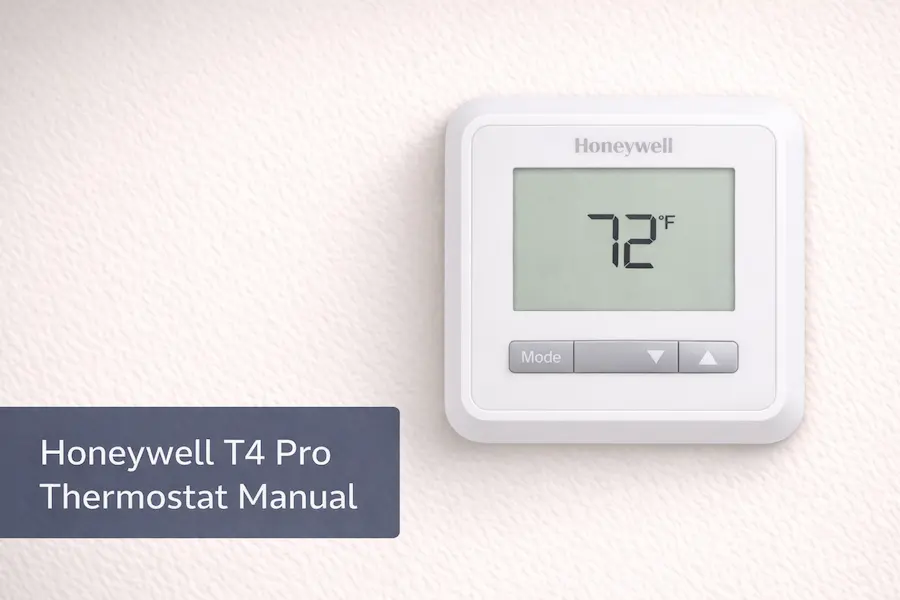
The Honeywell T4 Pro is a programmable thermostat made by Resideo and sold under the Honeywell Home brand. It supports single-stage heating and cooling and offers a four-period daily schedule. The thermostat uses the UWP mounting system and an installer setup menu to match it to the home’s HVAC equipment. It is supported by two documents: the Honeywell Home T4 Pro Installation Instructions Guide and the Honeywell Home T4 Pro User Guide.
Quick Summary
- The T4 Pro uses two separate documents: a Honeywell Home Installation Instructions Guide and a User Guide.
- The Installation Guide covers wiring, mounting, and the installer setup menu.
- The User Guide covers scheduling, system modes, and daily controls.
- Most installation problems happen when the installer setup menu is skipped at first power-on.
- Both documents are free downloads at resideo.com and honeywellhome.com.
Is this thermostat a Honeywell T4 Pro?
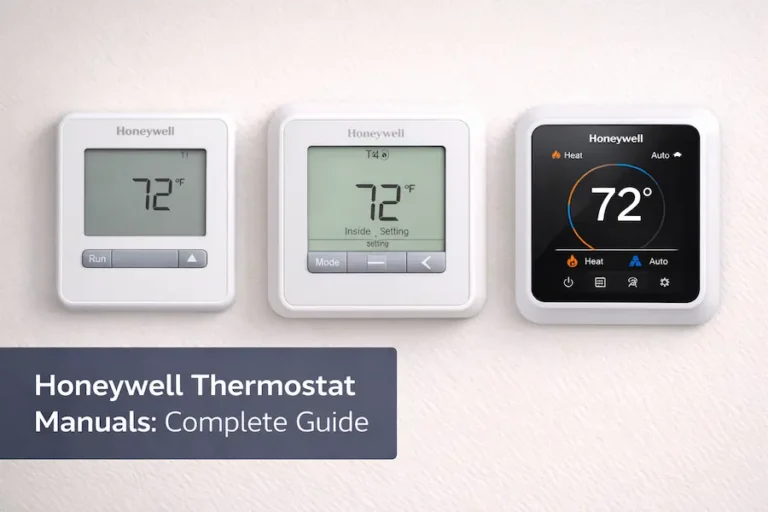
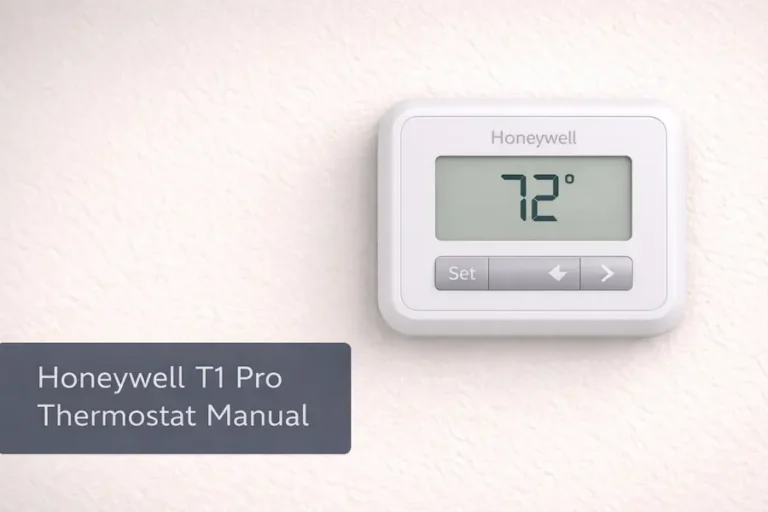
Many Honeywell Home thermostats look nearly identical on the wall. The T1 Pro, T4 Pro, and T6 Pro are parts of honeywell Pro Series thermostat manual lineup and share a similar shape and white housing. Using the wrong wiring diagram causes real problems during setup.
How the T4 Pro Differs From the T6 Pro and T1 Pro.
| Feature | T1 Pro | T4 Pro | T6 Pro |
|---|---|---|---|
| Programmable | No | Yes | Yes |
| Scheduling | None | 7-day, 5-2, 5-1-1 | Flexible 7-day |
| System stages | Single-stage | Single-stage | Single and multi-stage |
| Heat pump support | No | TH4210U2002 only | All variants |
| ISU menu | Basic | Standard | Advanced |
| Model numbers | TH1110U2008 | TH4110U2005 / TH4210U2002 | TH6320U2008 / TH6210U2001 |
T4 Pro vs T6 Pro: Key Difference
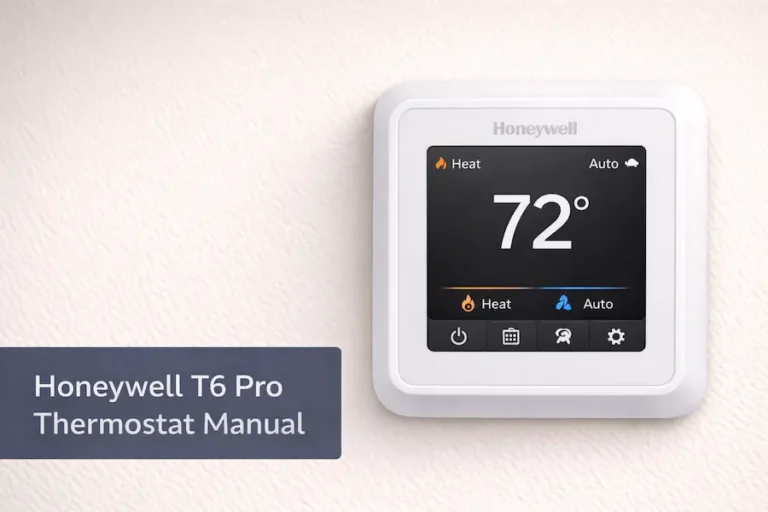
The T4 Pro is designed for standard single-stage systems with simple scheduling. The T6 Pro supports more system types, including heat pumps and multi-stage systems, and offers more flexible scheduling options. If your system is basic, the T4 Pro is usually enough. For more advanced control, see the Honeywell T6 Pro thermostat manual.
T4 Pro Model Numbers to Know
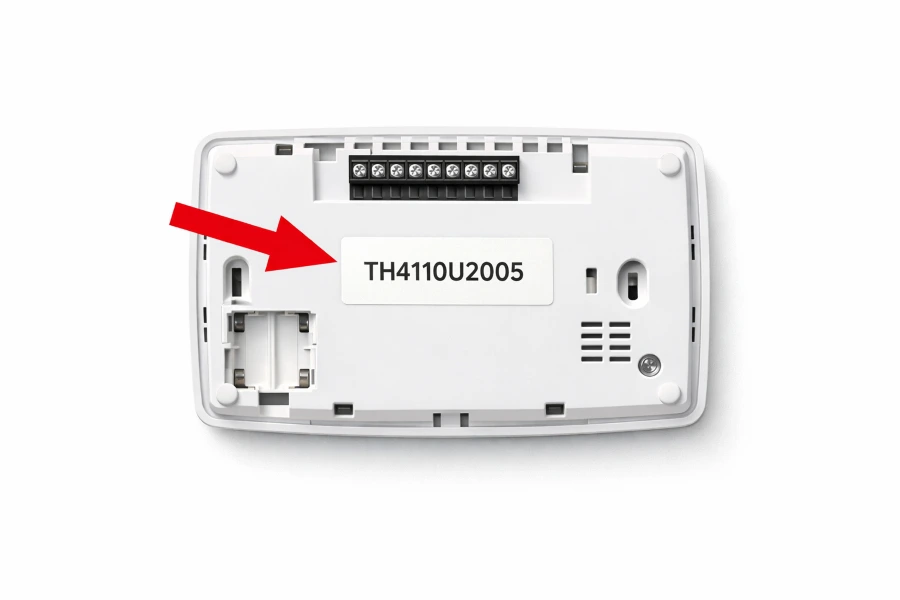
The T4 Pro comes in two versions. The TH4110U2005 supports single-stage heating and cooling on conventional systems only. The TH4210U2002 adds heat pump support, auxiliary heat, and emergency heat mode. These models use different wiring diagrams. Confirm which version you have before downloading any document from Resideo.
Where to Find Your Model Number
Pull the thermostat body straight off the wall plate. The model number label is on the back of the unit. The suffix, either U2005 or U2002, tells you which version you have.
Which Honeywell T4 Pro document do you need?
The T4 Pro has two separate documents, each covering a different stage of setup.
Honeywell Home T4 Pro Installation Instructions Guide
Covers wiring diagrams, HVAC compatibility, UWP wall plate mounting, and the full installer setup menu. Start here if you are wiring the thermostat for the first time.
Honeywell Home T4 Pro User Guide
Covers system modes, fan settings, scheduling, display symbols, and hold functions. If the thermostat is already installed, this is the document for day-to-day use.
Which Manual to Open First
If you are installing the thermostat yourself, open the installation guide first. Do not move to the user’s guide until the ISU menu is complete. If the thermostat is already installed, open the
Understanding the T4 Pro Wiring Terminals
The wiring section of the Honeywell Home installation guide uses standard HVAC terminal labels. Before disconnecting any wires, photograph the current wiring. A clear photo saves time if anything needs to be rechecked.
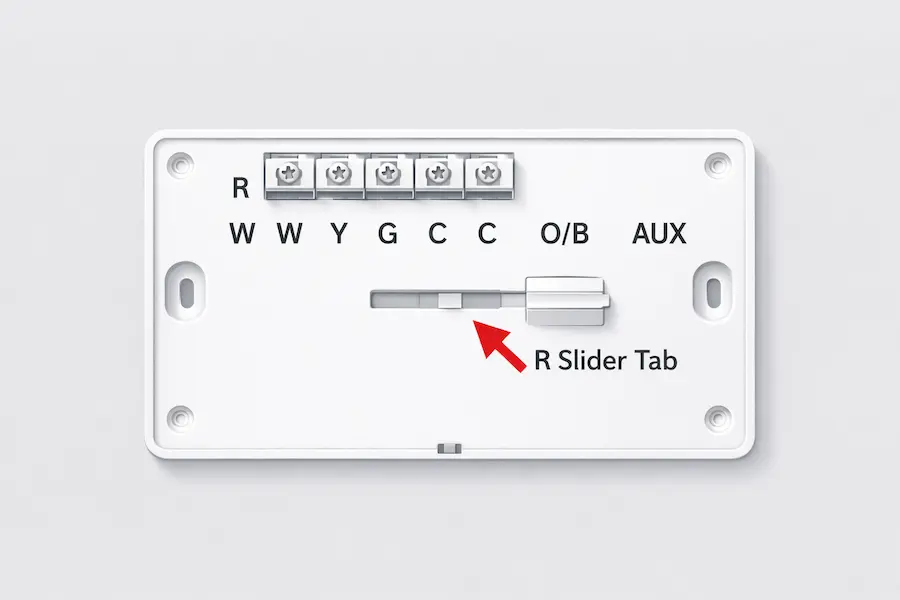
Standard Terminals: R, W, Y, G, C
| Terminal | Name | Function |
|---|---|---|
| R | Power | 24-volt AC power from the system transformer |
| W | Heat | Heating signal to furnace or boiler |
| Y | Cool | Cooling signal, activates the compressor |
| G | Fan | Controls the blower fan independently of heating or cooling |
| C | Common | Completes the 24-volt circuit. Enables continuous backlight. |
| O/B | Reversing valve | Controls heat pump reversing valve. TH4210U2002 only. |
| AUX | Auxiliary heat | Backup heat for heat pump systems. TH4210U2002 only. |
The R Slider Tab on the UWP Mounting System
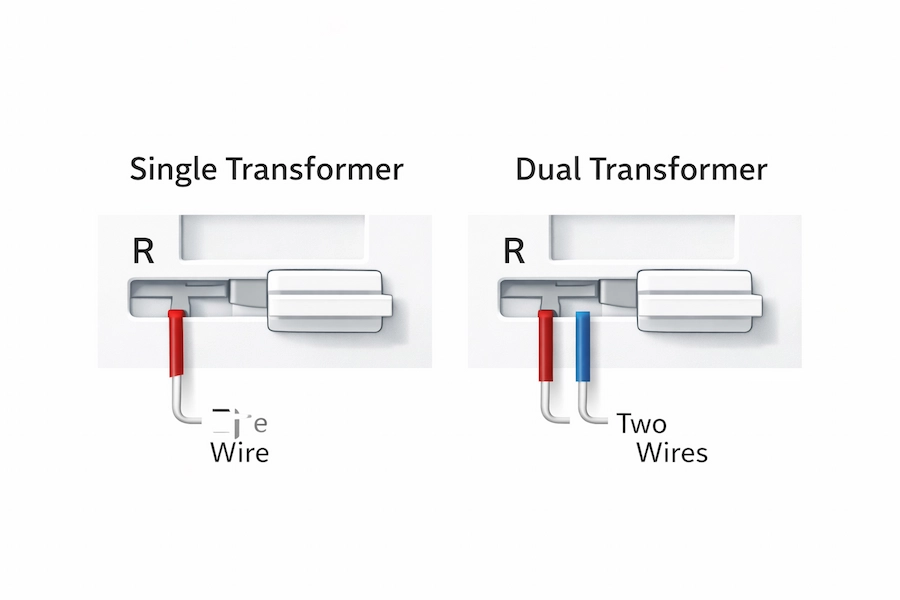
The UWP wall plate includes a built-in component called the R Slider Tab. This jumper determines how the R terminal handles transformer wiring. In a single transformer system, one R wire handles both functions and the slider stays in the default position. In a dual transformer system, separate Rc and Rh wires carry independent power for heating and cooling. Move the slider to the two-wire position before connecting any wires.
What TH4210U2002 Adds
The TH4210U2002 includes three terminals not found on the TH4110U2005. The O/B terminal controls the reversing valve on heat pump systems. The AUX terminal connects auxiliary backup heat. Emergency Heat mode bypasses the heat pump and runs auxiliary heat directly. Do not use the TH4210U wiring diagram on a TH4110U model.
How the T4 Pro Installation Guide Explains the Installer Setup Menu
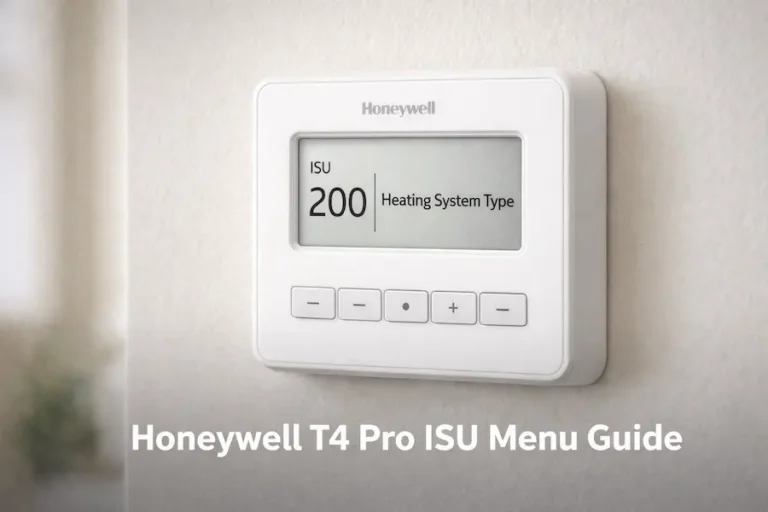
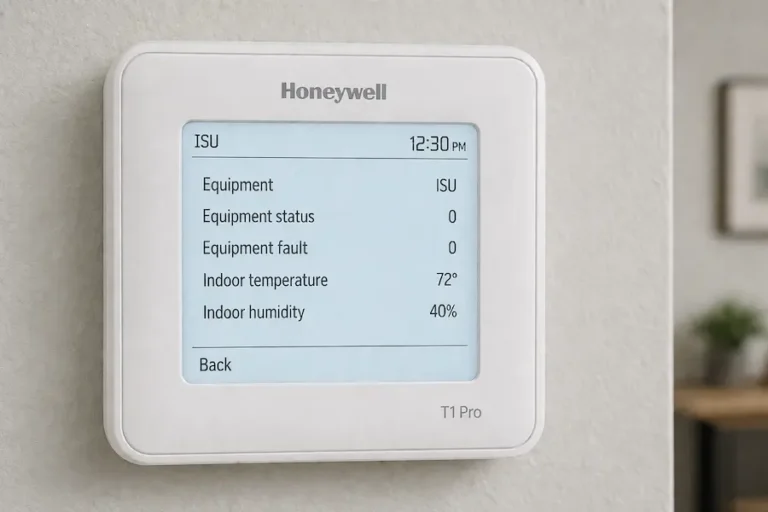
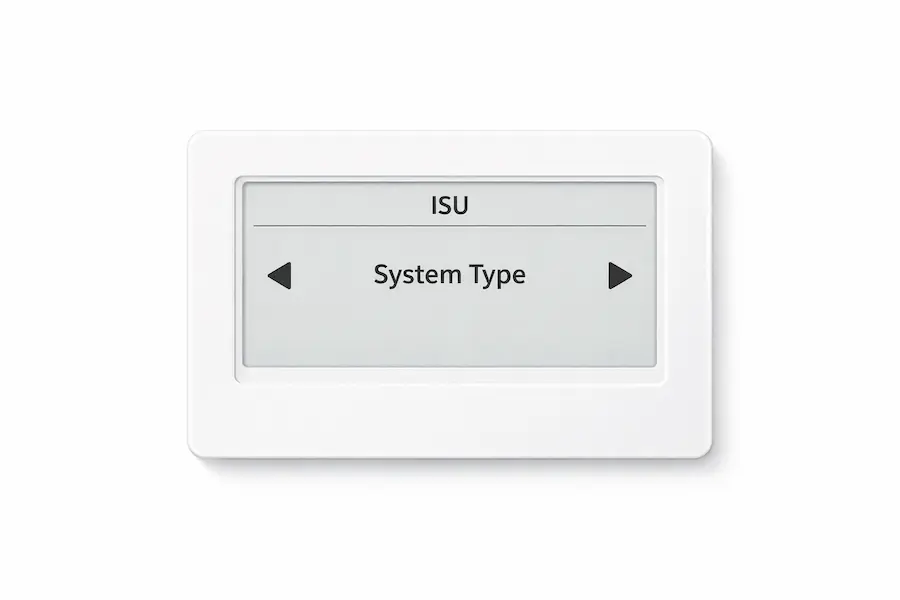
The installer setup menu, called the ISU menu, is a one-time configuration step that tells the thermostat about your HVAC system. It is covered only in the Honeywell Home installation guide. Many homeowners skip it after first power-on and move to daily use without completing it. Default settings may not match the equipment and problems emerge later.
How to Enter the ISU Menu
The Honeywell Home T4 Pro Installation Instructions Guide explains the exact button sequence used to enter the ISU menu. The process takes only a few seconds. The display moves to the first ISU setting once you enter it correctly.
Key ISU Settings to Configure
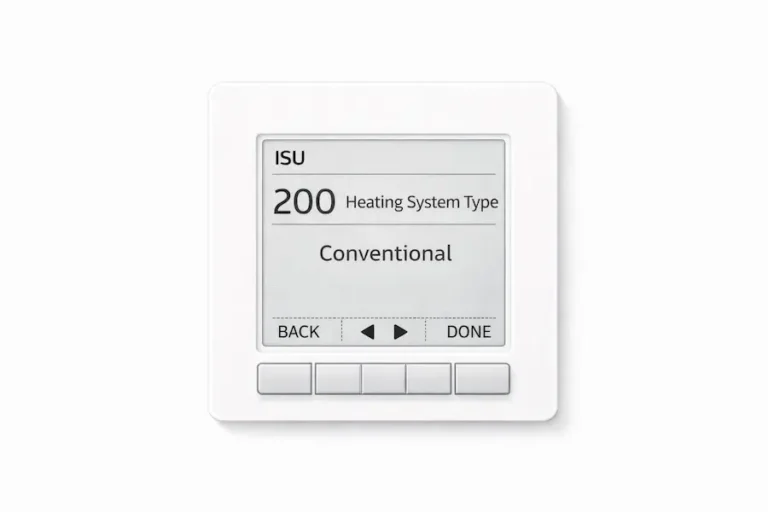
The system type setting must match your actual HVAC equipment. Setting it incorrectly causes the thermostat to control the wrong outputs.
| ISU Setting | Options | What to Check |
|---|---|---|
| System type | Conventional / Heat pump | Must match your actual HVAC equipment exactly |
| Fan control | Gas / Electric | Controls blower behaviour during a heating call |
| Compressor protection | On / Off | Prevents short cycling. Leave On unless advised otherwise. |
| O/B valve setting | O (cool) / B (heat) | Heat pump only. Check your equipment documentation. |
| Auxiliary heat | Yes / No | Enable only if AUX terminal is wired. TH4210U2002 only. |
| Schedule type | 7-day / 5-2 / 5-1-1 / Non-programmable | Set this before programming any schedule periods |
Fan control determines blower behavior during a heating or cooling call. The compressor protection delay controls how long the thermostat waits before allowing the compressor to restart after a shutdown.
Saving and Testing Your Settings
After completing all ISU settings, save and return to the home screen. Then use the system test function to verify the heating, cooling, and fan operation separately. During a system test the compressor protection delay is bypassed so the system responds immediately.
Understanding the Main Settings in the T4 Pro User Guide
The Honeywell Home T4 Pro user guide covers all daily operations once installation is complete. It opens with a labeled display diagram that explains every symbol on the screen.
System Modes
The T4 Pro offers four standard modes: Heat, Cool, Auto, and Off. Heat mode heats to your setpoint only. Cool mode cools only. Auto mode lets the system switch between heating and cooling as needed. Off stops all conditioning. The TH4210U2002 adds emergency heat mode, which bypasses the heat pump and runs auxiliary heat directly.
Fan Modes
Auto fan mode runs the blower only during an active heating or cooling call. On fan mode, it runs the blower continuously. If your fan is running all the time, check out the fan mode setting in the user guide before assuming a system’s fault.
Adaptive Intelligent Recovery
Adaptive Intelligent Recovery learns how long your system takes to reach your setpoint. The thermostat calculates an earlier start time, so the temperature is correct when each scheduled period begins. The feature activates automatically over several days of use.
Built-in Compressor Protection
When the compressor shuts down, the T4 Pro waits before allowing it to restart. During this delay, the display shows a flashing “Cool On ” or “Heat On” indicator. This is normal protective behavior and not a fault.
On C-wire and backlight: without a C wire, the backlight times out after about eight seconds. With one, it stays active for around 45 seconds.
How to Program the T4 Pro Schedule
The T4 Pro uses a fixed four-period daily structure, unlike the T6 Pro, which allows more flexible customization.
The Four Daily Periods
Each day is divided into four periods: Wake, Away, Home, and Sleep. Each period has a start time and a temperature setpoint. The thermostat runs the schedule automatically once programmed.
5-2 Schedule Programming
In 5-2 mode, you set one schedule for Monday through Friday and a separate schedule for Saturday and Sunday. The T4 Pro also supports full 7-day scheduling, a 5-1-1 option, and a non-programmable mode.
Temporary and Permanent Hold
A temporary hold overrides the scheduled temperature until the next period begins, then returns to the schedule. A permanent hold holds the temperature indefinitely until you cancel it manually. If your schedule stops running, please check for an active permanent hold first.
What the Manual Tells You to Check First
Use this table as a starting point when something unexpected appears on the display.
| What You See | What the Manual Calls It | Where to Find It |
|---|---|---|
| Blank screen | Power or battery issue | Installation Guide: Wiring section |
| Cool On flashing | Compressor protection delay | User Guide: Compressor Protection |
| Schedule not running | Permanent Hold active | User Guide: Hold Settings |
| Fan running constantly | Fan mode set to On | User Guide: Fan Settings |
| System not responding | Incorrect ISU setting | Installation Guide: ISU section |
| Low battery warning | Battery alert | User Guide: Battery section |
| Display says Wait | System delay protection | User Guide: System Delay |
Manual Match Checklist: Before You Follow Any Steps
Confirm the following before using any wiring diagram or installer setting:
- Confirm the exact model number from the label on the back of the thermostat
- Confirm whether you have TH4110U2005 or TH4210U2002 before downloading anything
- Search resideo.com with the full model number including the suffix
- Download both the Honeywell Home installation guide and user guide as separate PDFs
- Check the document version code on the PDF cover against the Resideo product page
- Confirm the wiring diagram matches your terminal layout before connecting wires
- Complete the ISU menu fully before running any system test
Where to Download the Official T4 Pro Manual
Download both T4 Pro documents from resideo.com or honeywellhome.com using the full model number, including the suffix. Download the installation guide and user guide into two separate files. Third-party sites frequently carry outdated versions with incorrect wiring diagrams.
When the Manual Is Not Enough
The Resideo T4 Pro guides cover wiring, configuration, scheduling, and daily controls thoroughly. They do not cover HVAC system faults such as refrigerant issues or failed components. If the thermostat is configured correctly, but the system still does not operate as expected, the fault is likely in the HVAC equipment. See our Honeywell Thermostat Not Working guide for a full diagnostic walkthrough.
Frequently Asked Questions
Conclusion
The Honeywell T4 Pro manual is divided into two documents for a reason. The Resideo installation instructions guide handles everything up to and including the installer setup menu. The user guide handles everything after that. Using the right document at the right stage removes most of the confusion homeowners run into with this thermostat.
Confirm your exact model number before downloading anything. Complete the installer’s setup menu before testing the system. Examine the R slider tab if you have a dual transformer setup. The T4 Pro is straightforward once you know which PDF to open first.